

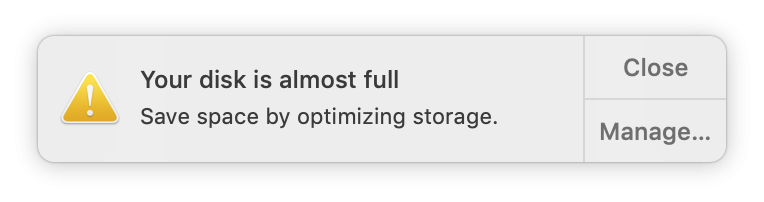
Ever notice how your Mac seems perfectly fine… until the day it says “Your disk is almost full” right before an important task?
It’s like opening a closet you haven’t touched in months. At first glance everything looks ok, then you realise it’s more crowded than you thought. Storage on a Mac works the same way. Files pile up quietly and then one day the space runs out.
Good news: macOS makes it surprisingly simple to see where the space is going and remove the heavy items without risking anything important.
How to Check What’s Filling Your Mac’s Storage
You start with one quiet place on your Mac where everything is counted for you.
- Select Apple menu () in the top-left corner.
- Choose System Settings.
- In the sidebar, select General.
- Click Storage.
Your Mac takes a moment to measure everything. Then you see a bar showing what’s using space: apps, documents, photos, system data, and other familiar categories.
Look down, and each one opens like a drawer so you can look inside, and macOS offers suggestions at the top that help you free space safely.
Use the Storage Categories to Find Files You Can Remove
Under the coloured storage bar, you’ll see two main areas:
- Recommendations at the top
- A list of categories such as Applications, Books, Developer, Documents, iCloud Drive, Mail, Messages, Music, Photos, and more
This is where the real cleanup happens now. Everything is grouped by type, and each line shows how much space that category is using, so your biggest space hogs float to the top.
Step 1: Open the details for a category
- Look at the list and find something using a lot of space, for example Applications or Documents.
- Click the small information button (the “i” in a circle) on the right side of that row.
A new panel opens that shows you more detail for that category.
- For Applications, you’ll see a list of apps, how large they are, and when you last used them.
- For Documents, you’ll see large files, downloads, and other items stored in your home folder.
- For Photos or Music, you’ll see how much space your libraries and media are using.
Step 2: Decide what to keep
Take a moment to scan the list.
- Think about which apps or files you actually use.
- If you do not recognise a file, click it once to see more information, or open it to double-check before removing it.
Step 3: Delete something you no longer need
The exact buttons can vary slightly by category, but the pattern is similar:
- Select the app or file you want to remove.
- Click Delete… or choose Delete from the options shown.
- Confirm that you really want to delete it.
Some apps are removed immediately, others are moved to the Trash.
Tip box: Don’t forget the Trash
Items usually keep taking up space while they sit in the Trash. When you are finished cleaning up, open the Trash in the Dock, check that nothing important is in there, then click Empty.
Step 4: Move important but rarely used files
If a file matters but you do not need it on your Mac all the time, you do not have to throw it away:
- Move it to an external drive (for example, a USB drive or external hard disk), or
- Move it into a cloud folder such as iCloud Drive, Dropbox, or Google Drive.
You keep the memory, photos, or documents, but free space on your Mac, a bit like boxing up old photo albums and putting them on a shelf instead of leaving them in the middle of the living room.
Apps Can Also Be Big – and Easy to Remove Safely
Sometimes it’s not documents but old apps you no longer use. In the Storage screen:
- Select Applications.
- Sort by size.
- Remove anything you’re sure you don’t need by right-clicking and choosing Move to Trash.
Your documents stay safe — removing an app doesn’t erase your personal files.
If this felt clear and encouraging, you’ll love the step-by-step guidance in Learning Mac for Absolute Beginners – macOS 26 (2026 edition). It walks you through storage, backups, photos, and everyday Mac tasks with the same calm, friendly tone.