
“Wait, What Did She Just Download?”
It started with a puzzled phone call from a dear friend named Laura.
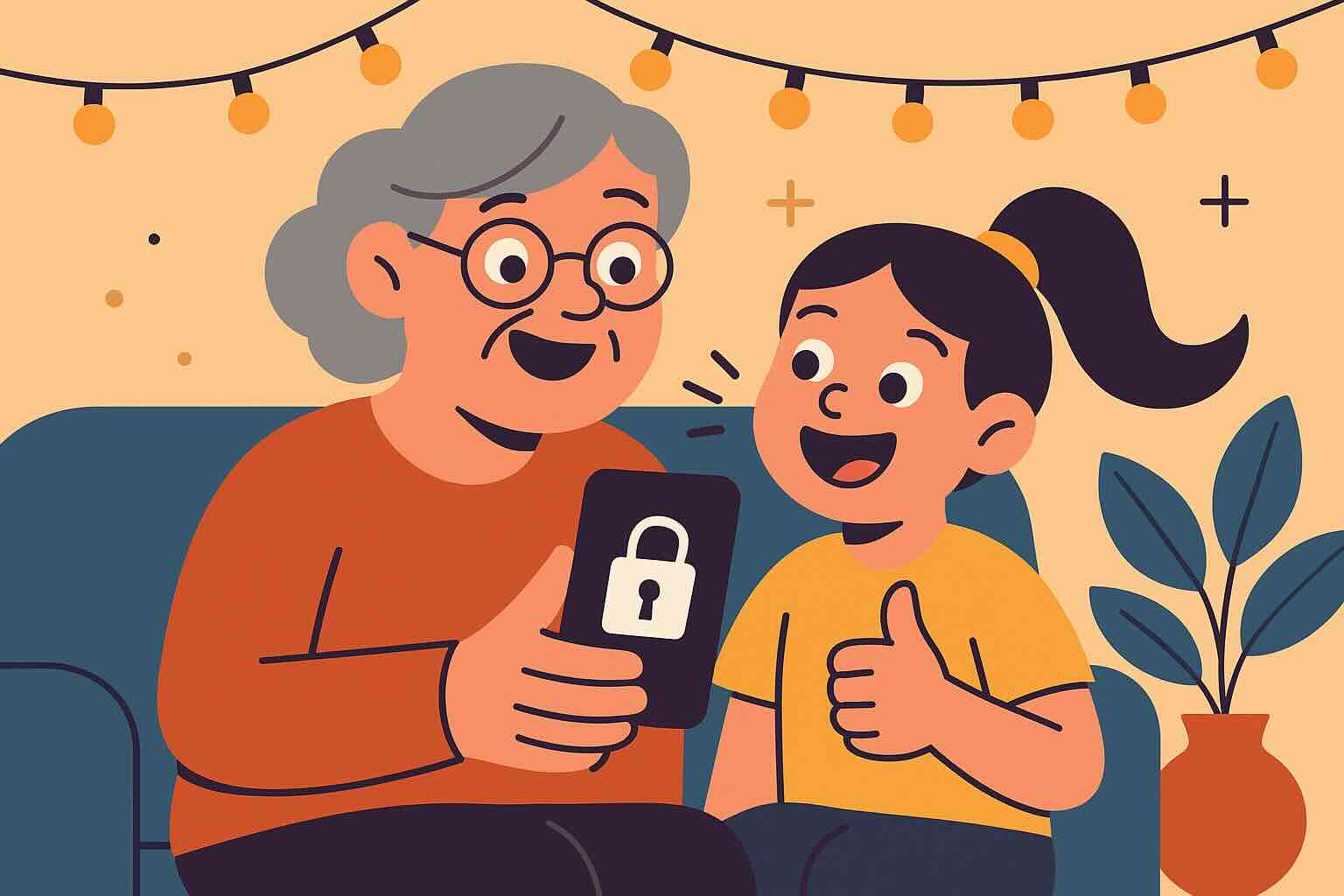
She had just handed her iPhone to her 9-year-old granddaughter to play a “math game” during a family dinner. Twenty minutes later, she discovered the child had somehow found a chat-based app, downloaded it, and—thankfully—typed only gibberish before boredom kicked in.
Laura’s words to me were half-laugh, half-panic:
“I didn’t even know you could download something without a password!”
If you’ve ever handed your phone to a curious kid and ended up feeling uneasy about what they could access, you’re not alone. The good news? Apple built in a whole suite of parental controls that can help you take back the reins—no tech degree required.
iPhone Parental Controls: Step-by-Step Basics
You don’t need to understand code, digital lingo, or even be especially “good with phones.” Setting up basic parental controls on your iPhone can be done in minutes. Let’s walk through it together:
1. Turn on Screen Time
This is the master switch that gives you access to all parental tools.
- Open the Settings app
- Tap Screen Time
- Tap Turn On Screen Time, then choose This is My iPhone or This is My Child’s iPhone
- You’ll be asked to set a passcode—make sure it’s something the child won’t guess (avoid birthdays and “1234”)
2. Block App Store Downloads & Purchases
You can prevent unwanted app installs (or in-app purchases) entirely.
- Under Screen Time, tap Content & Privacy Restrictions
- Turn it ON
- Tap iTunes & App Store Purchases
- Set all the options (like installing or deleting apps) to Don’t Allow
3. Limit Specific Apps or Websites
Want to block YouTube, TikTok, or web browsing entirely?
- Go to Allowed Apps to hide entire built-in apps (like Safari)
- Or, tap Content Restrictions and choose categories like Web Content, Apps, or Movies
- Under Web Content, you can restrict access to adult sites or allow only hand-picked websites
4. Set Daily Time Limits for Apps
You can limit how much time a child spends on games or videos.
- Tap App Limits → Add Limit
- Choose a category (like Games or Entertainment)
- Set a daily time limit (e.g., 30 minutes)
- When time runs out, the app locks—unless you approve more time
5. Control Communication
You can even manage who your child can contact during allowed hours or downtime.
- Under Communication Limits, choose whether they can message everyone or just contacts
- You can even restrict communication during “Downtime” (like bedtime hours)
A Real Story: From Overwhelmed to In Control
When Laura and I sat down with her iPhone over coffee and cookies, she was convinced this would be “too much for her.” But within 15 minutes, she had locked down the App Store, blocked random web browsing, and even discovered she could approve game time remotely if her granddaughter asked nicely.
Her comment afterward stuck with me:
“I always thought ‘parental controls’ were something you needed a 14-year-old to explain. Turns out I just needed you—and a patient cup of tea.”
Now, she lets her granddaughter use her phone with confidence—knowing the digital world won’t sneak in through a curious tap.
Quick Takeaways
- You have more control than you think. Apple’s Screen Time tools are simple once you know where to look.
- It’s not just for parents. Grandparents, babysitters, or even older siblings can benefit from having protections in place.
- Start small. You don’t need to set every restriction at once—begin with App Store controls and go from there.
Want More Support (Without the Jargon)?
If you found this guide helpful and you’re ready to feel even more confident with your iPhone, you’ll find step-by-step help, calm explanations, and real-world examples in my book:
Learning iPhone for Absolute Beginners – 2025 Edition
It’s written exactly for people like Laura—and maybe for you, too.
No pressure. Just support.
And maybe a cup of coffee.