
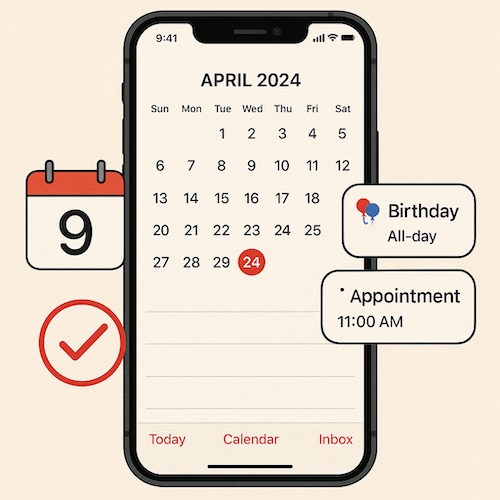
Have you ever had that sinking feeling when you realize you’ve forgotten someone’s birthday, or worse, shown up late to a doctor’s appointment? Many new iPhone users aren’t sure how to make the most of the built-in Calendar app, and as a result, they rely on scraps of paper, sticky notes, or memory alone. The good news is your iPhone has a powerful, easy-to-use calendar that can make sure you never miss an important day again.
Why the iPhone Calendar Is Your Best Friend
Think of the Calendar app as your personal assistant. It doesn’t just hold dates, it gently nudges you ahead of time so you’re always prepared. Whether it’s a recurring birthday, your monthly book club, or next week’s dental appointment, Calendar keeps everything in one tidy place.
Step 1: Add an Event
- Open the Calendar app (white background with a red date number).
- Tap the + button in the top-right corner.
- Enter the title (like “Doctor’s Appointment” or “Sarah’s Birthday”).
- Choose the date and time.
- Tap Add.
That’s it! You’ve just created your first event.
Step 2: Set a Reminder (Alert)
Creating an event is good. Getting a reminder before it happens is even better.
- When adding an event, scroll to Alert.
- Choose a time: “At time of event,” “1 day before,” or even “1 week before.”
- You’ll get a gentle notification so you won’t be caught off guard.
Step 3: Repeat Important Events
For birthdays, anniversaries, or regular appointments, don’t keep re-typing them.
- Tap Repeat while creating the event.
- Select “Every Year” for birthdays or “Every Month” for book clubs.
- Now, your iPhone will automatically remind you year after year.
Step 4: Sync Birthdays from Contacts
If you’ve saved birthdays in your Contacts, your iPhone can display them on the calendar automatically.
- Open Settings > Calendar > Accounts.
- Make sure Contacts is enabled.
- Open Calendar > Calendars > Show Birthdays Calendar.
Now, you’ll see balloons (metaphorically speaking) pop up for each saved birthday.
A Real Learner’s Story: Mary and Her Book Club
Mary, a retired teacher, loved attending her local book club,but she often forgot which Thursday it was scheduled. She’d either miss it or arrive a week early. Frustrating!
One of her children showed her how to set a repeating event in her iPhone Calendar for the second Thursday of each month. Now, not only does she always know when the meeting is, but she also gets a reminder two days before—just enough time to finish those last few chapters. Mary told me, “I finally feel like my iPhone is working for me, not against me.”
Key Takeaways
- Use the + button to add events.
- Set reminders so nothing sneaks up on you.
- Repeat events for ongoing appointments and birthdays.
- Turn on Birthdays Calendar to keep loved ones’ special days front and center.
With just a few taps, your iPhone Calendar becomes a quiet helper in your pocket—freeing your mind from the stress of remembering every little date.
If you found this helpful, you’ll love Learning iPhone for Absolute Beginners – 2025 edition. It walks you through not only Calendar, but also Photos, Messages, Safari, and more, step by step, in plain English. Available in both eBook and print on Amazon.