
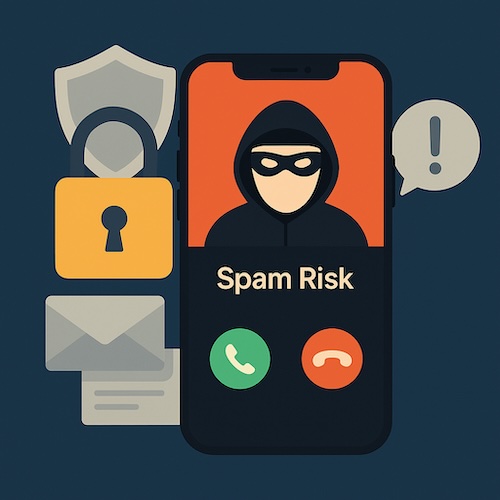
Few things are more annoying than sitting down with a cup of tea, only to have your iPhone buzz with a call from “Scam Likely” or a text promising miracle cures. Many people assume you need to download special apps to stop this flood, but your iPhone already has powerful tools built in. With a few quick settings, you can reclaim your peace and quiet.
Why Spam Calls and Texts Happen
Your phone number can end up on call lists when you sign up for services, enter online contests, or even when companies share customer lists. Spammers then try their luck, hoping you’ll answer. While we cannot stop every attempt, we can stop most of them from reaching your attention.
Step 1: Silence Unknown Callers
Your iPhone has a setting called Silence Unknown Callers. When this is on, calls from numbers not in your Contacts, Mail, or Messages will go straight to voicemail. You’ll still see them in your call log, but your phone will not ring or buzz.
- Open Settings
- Tap Phone
- Scroll down and turn on Silence Unknown Callers
This way, friends, family, and doctors’ offices (who are saved in your contacts) will still reach you, but the robocall selling “free cruises” will not.
Step 2: Filter Unknown Senders in Messages
Text spam is just as common. Apple gives you a filter to separate real conversations from junk.
- Open Settings
- Tap Messages
- Turn on Filter Unknown Senders
Now, texts from people not in your contacts will be placed in a separate tab in the Messages app. You can check it when you like, but those fake delivery alerts will no longer sit beside notes from loved ones.
Step 3: Block Individual Numbers
If a particular spammer keeps slipping through, you can block them directly.
- Open the message or call in your recent list
- Tap the info (i) button
- Choose Block this Caller
They won’t be able to call, text, or FaceTime you again.
A Story from Experience
One of my readers, Martha, told me she dreaded answering her iPhone. She was getting three to five spam calls a day, plus texts about “unclaimed packages.” After I walked her through these settings, she noticed an immediate difference. Now, her phone rings only when it matters, and she no longer jumps every time it vibrates. She said it felt like “taking back control” of her iPhone.
Key Takeaways
- Use Silence Unknown Callers to stop most spam calls from interrupting you
- Turn on Filter Unknown Senders to separate texts from strangers
- Block repeat offenders directly from your call or message log
With these steps, your iPhone becomes calmer and more secure, without needing extra apps.
If this guide helped, you may enjoy Learning iPhone for Absolute Beginners – iOS 26 – 2026 edition. It explains privacy, security, and everyday iPhone use in the same clear, step-by-step style. Available in eBook and print on Amazon.