
Have you ever answered a call with your AirPods and thought, “Why does it sound like I’m underwater?” You’re not alone. Even the best wireless earbuds can sound muffled or pick up background noise—especially if a few quiet settings are overlooked.
The good news is that your iPhone gives you several tools to make AirPods sound clearer for calls. Most take less than a minute to check.
Step 1: Check the Microphone Setting
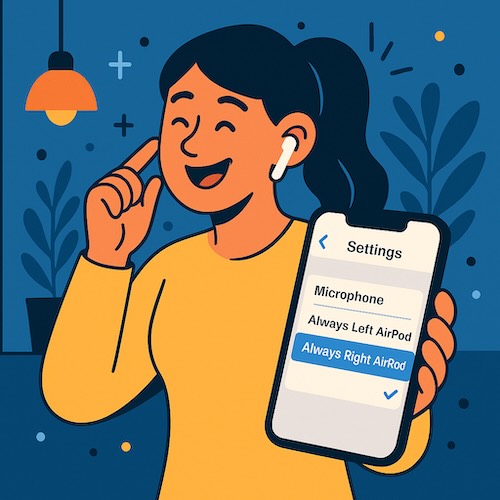
Your AirPods have two microphones—one in each ear. By default, they automatically switch between them. If calls sound uneven or cut in and out, try setting one microphone manually:
- Open Settings on your iPhone.
- Tap Bluetooth.
- Find your AirPods in the list and tap the ⓘ (Info) button.
- Scroll to Microphone and choose Always Left AirPod or Always Right AirPod.
If the sound improves, leave it there. If not, switch to the other side and test again. This stops the earbuds from flipping microphones mid-call, which can cause sudden volume dips.
Step 2: Enable Noise Cancellation (on supported models)
If you’re using AirPods Pro or AirPods Max, noise cancellation helps you hear the caller more clearly—especially in a busy room.
While you’re wearing them:
- Open Control Center (swipe down from the top-right corner).
- Touch and hold the volume slider that shows your AirPods icon.
- Tap Noise Control, then select Noise Cancellation.
For phone calls, this doesn’t block your voice—it only quiets the world around you so you can focus on the conversation.
Step 3: Turn On Voice Isolation
This small iPhone feature can make a huge difference. It filters out background noise so your caller hears you, not the blender in the background.
During a call:
- Open Control Center.
- Tap Mic Mode.
- Select Voice Isolation.
Once set, your iPhone remembers this for future calls.
(According to Apple documentation, Voice Isolation is available on iPhone models with iOS 15 or later.)
Step 4: Keep Your AirPods Clean and Updated
A tiny bit of pocket lint can block the microphones or speakers. Gently wipe your AirPods with a dry, soft cloth and remove visible dust from the microphone openings using a soft, dry brush—never liquids or sharp tools.
To check for firmware updates:
- Keep AirPods in their case, connected to your iPhone, and charging.
- Updates install automatically in the background when conditions are right.
This quiet process ensures you’re using Apple’s latest sound improvements.
Step 5: Adjust Audio Balance (Optional)
If one ear sounds louder than the other:
- Go to Settings > Accessibility > Audio/Visual.
- Slide the Balance control so sound feels centered.
A simple tweak like this can make long calls much more comfortable.
A Real Learner’s Story
Patricia, a retired teacher, called her son daily using AirPods, but he often asked her to “say that again.” After a quick check, she found her AirPods were switching microphones mid-call and one side was dusty from makeup powder.
She cleaned the mics, set her right AirPod as the dedicated microphone, and turned on Voice Isolation. The next call? “Mom, you sound great!”
She said it felt like “learning to tune an instrument I already owned.”
Quick Recap
- Set one AirPod microphone for steadier sound.
- Use Noise Cancellation to block background distractions.
- Turn on Voice Isolation for clearer calls.
- Clean and update AirPods regularly.
- Adjust balance if sound feels uneven.
A few calm minutes in Settings can turn fuzzy calls into clear conversations.
If you found these steps helpful, you’ll love the friendly, step-by-step approach in “Learning iPhone for Absolute Beginners – iOS 26 (2026 edition)” by Simone Andrea Pozzi. It’s written for everyday users who want comfort and confidence, not jargon.