
Many people open the same apps over and over just to check the time, the forecast, or what’s next on their calendar. It can feel like rummaging through a drawer for the same three things every day.
There’s an easier way: widgets.
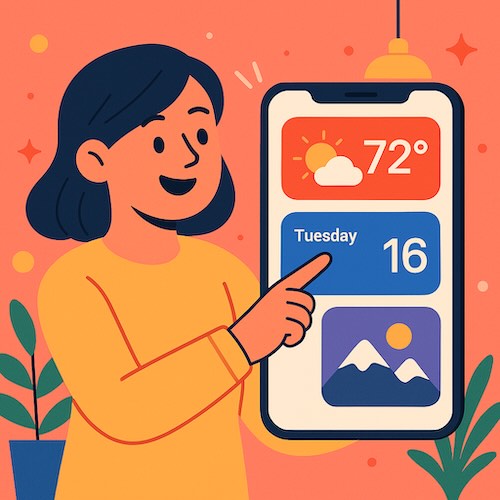
Widgets are small panels that live right on your Home Screen. They show live information—like the current weather, your next appointment, or a favorite photo—without opening an app. Think of them as tiny windows into your most useful apps, always ready at a glance.
How to add a widget to your Home Screen
The process is quick, and once you do it once or twice, it becomes second nature.
- Touch and hold any empty area on your Home Screen until the app icons begin to jiggle.
- Tap the Edit button in the top-left corner, then Add Widget. This opens the Widget Gallery.
- Scroll or search to find the app you want, like Weather, Calendar, or Photos.
- Swipe left or right to choose a size. Larger widgets show more detail, smaller ones save space.
- Drag it where you want it to sit.
- When you’re done arranging, tap Done in the upper-right corner.
That’s it: you’ve just customized your Home Screen.
Helpful examples to try
- Weather: Shows current conditions and the daily forecast. Great for planning a walk or knowing if the umbrella needs to come along.
- Calendar: Displays your next event or the whole month, depending on the size.
- Photos: Rotates through favorite moments automatically. A cheerful surprise every time you glance at your phone.
- Notes or Reminders: Handy for grocery lists or a daily to-do that stays visible.
You can mix and match these, or even stack several widgets of the same size. Just drag one widget on top of another to create a Smart Stack, then swipe up or down to see different ones in that same space.
A real learner’s story
Carla, one of our readers, used to start her mornings with a small ritual: opening three different apps—Weather, Calendar, and Reminders—before she even made coffee.
After learning about widgets, she placed all three on her first Home Screen. Now, her iPhone gently tells her whether it’s a sweater day, what’s on the schedule, and what errands are left—all before she even unlocks the phone fully.
She said, “I used to feel like my phone bossed me around. Now it feels like it works for me.”
A few extra tips
- To edit a widget, touch and hold it, then tap Edit Widget. You can choose what city’s weather shows or which photo album to feature.
- Want less clutter? Move less-used apps to the App Library by dragging them off the Home Screen.
- For peace of mind, you can add a Batteries widget to keep an eye on your phone and AirPods charge.
The calm of having what you need at a glance
Widgets help you see the essentials without being pulled into endless scrolling. One look, one breath, and you’re informed.
Recap:
- Touch and hold, then tap the plus sign to add a widget
- Choose your apps and preferred size
- Arrange and stack to suit your day
It’s a small setup that makes every day smoother.
If this helped, you’ll enjoy the step-by-step comfort of Learning iPhone for Absolute Beginners – iOS 26 – 2026 edition.
It walks you through not just widgets but every daily iPhone skill—calmly, clearly, and one tap at a time.