
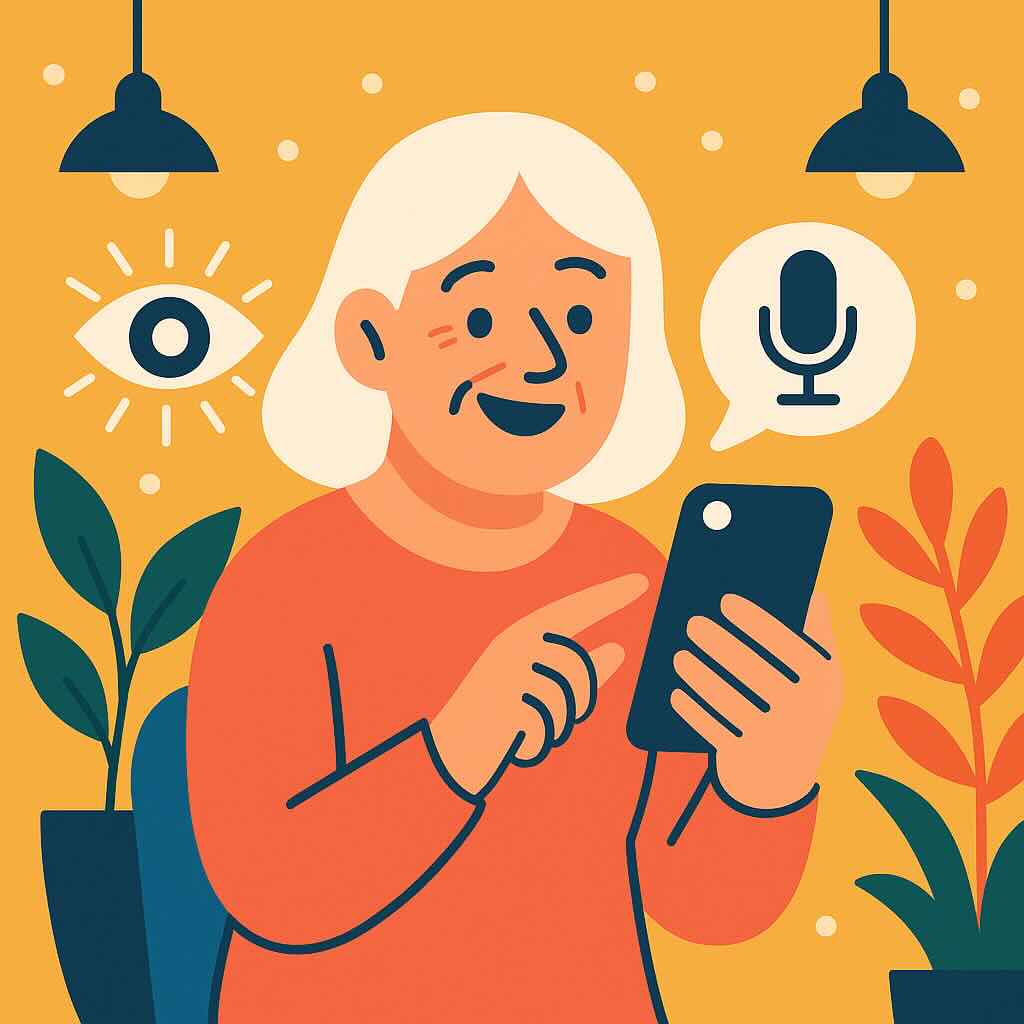
“I just want to see my phone, not fight with it.”
That’s what Gail, a 53-year-old art teacher, told me during one of our first sessions together. She loved using her iPhone to keep up with her grown kids, browse Pinterest, and snap photos of her garden. But reading small text on the screen? A nightmare. Navigating the icons? Confusing. And don’t even get her started on how easy it was to accidentally tap something and get “lost.”
Gail isn’t alone.
If you’ve ever found your iPhone a little too bright, too tiny, too fast, or just… not quite made for you, you’re exactly who Apple’s Accessibility Settings are built for.
And the best part? You don’t need to be “techy” to use them.
What Are Accessibility Settings (And Why Should You Care)?
Accessibility features are built-in tools that make your iPhone easier to see, hear, touch, and control—no extra apps, no extra cost. While they were originally designed to help people with disabilities, they’re incredibly useful for anyone who wants a phone that’s less frustrating and more intuitive.
Think of it like adjusting the seat and mirrors in a new car. You’re not changing the engine—you’re just making it more comfortable for you to drive.
Here are a few of the most helpful features to try.
1. Make Text Bigger (and Easier on the Eyes)
If you’ve ever found yourself squinting at your screen—or worse, using a magnifying glass—this is for you.
How to adjust text size:
- Open Settings
- Tap Accessibility
- Tap Display & Text Size
- Choose Larger Text
- Use the slider to pick the size that feels comfortable
Bonus tip: Turn on Bold Text while you’re here. It makes a big difference.
2. Zoom In Without Changing Everything
Sometimes you just want a closer look without making everything permanently huge. That’s where Zoom comes in.
To turn it on:
- Settings → Accessibility → Zoom → Toggle ON
Now you can double-tap with three fingers anywhere on the screen to zoom in and pan around. (Don’t worry, the book walks you through how to practice this if it feels tricky at first.)
3. Use Voice Control (Yes, Really!)
Typing on a small screen can be tiring. Luckily, your iPhone can do a lot of things just by listening.
Try saying:
- “Open Safari”
- “Scroll down”
- “Go home”
- “Tap Messages”
To turn on Voice Control:
- Settings → Accessibility → Voice Control
You’ll be surprised how helpful this becomes—especially when you’re cooking, holding a grandchild, or just don’t want to tap your way through menus.
4. Customize Tap & Touch Settings
If you’ve ever tapped something accidentally, or struggled to tap quickly enough for things to register—this setting is your new best friend.
Head to:
- Settings → Accessibility → Touch
From here, you can:
- Adjust Touch Duration (so your iPhone is more forgiving with quick taps)
- Enable AssistiveTouch (which adds an on-screen “home button” you can use for shortcuts)
5. Reduce Motion (and Screen Jitters)
Some people feel dizzy or distracted by the animations on iPhone—like when apps zoom in and out.
To calm things down:
- Settings → Accessibility → Motion
- Turn on Reduce Motion
This makes transitions gentler and helps the screen feel more stable. It’s a small change, but many people find it helps them feel more confident and less “rushed.”
A Real Learner: Gail’s Story
Back to Gail.
When we first explored her iPhone’s Accessibility settings together, she actually laughed out loud. “Why didn’t anyone tell me this stuff was here?”
We started with Larger Text and Bold Text—simple changes that made reading texts, email, and recipes so much easier. Then we turned on Voice Control so she could open Safari and dictate searches hands-free. Finally, she added AssistiveTouch to help her reach tricky buttons with one finger.
Within a week, she was texting her kids with confidence, taking garden photos again, and even using FaceTime without needing help.
“It’s like I finally own the phone,” she said. “Not the other way around.”
Takeaway Tips
If you remember nothing else, remember this:
- Your iPhone can be adjusted to fit you—not the other way around.
- Start with one or two settings. You don’t need to change everything overnight.
- If something feels confusing, that’s okay. You’re learning something new, and you’re doing great.
Want a Friendly Guide for the Rest?
If this post helped you feel a little more in control, you’ll love the step-by-step help in Learning iPhone for Absolute Beginners – 2025 Edition. It covers all these features (and more), with real-life examples, clear diagrams, and no jargon.
The goal? To help you use your iPhone with confidence—not confusion.
Thanks for reading, and remember: it’s never too late to make your iPhone work for you.