
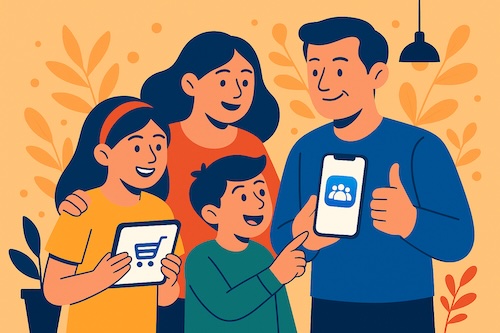
When the App Store Becomes a Family Affair
Laura loved how her iPhone kept her in touch with her grandchildren—but one day, she noticed several surprise game charges. Her grandson had “helped himself” to a few new apps, and suddenly, Family Sharing became a must.
If this sounds familiar, you’re not alone. Apple designed Family Sharing to make it easy for up to six family members to share what matters—apps, subscriptions, photos, and even iCloud storage—without mixing up accounts or credit cards.
Here’s how to set it up calmly, one step at a time.
Step 1: Turn On Family Sharing
Where to go:
- Open Settings on your iPhone.
- Tap your name at the top.
- Select Family Sharing, then Set Up Your Family.
You’ll be the Family Organizer, meaning purchases and subscriptions come from your payment method (but everyone keeps their own Apple ID).
Add family members:
- Tap Add Member, then choose Invite via Messages or Invite in Person.
- They’ll receive an invitation to join your family group.
Once they accept, they’ll be listed under your Family Sharing screen.
(According to Apple documentation, these steps are consistent with iOS 26; menu names may vary slightly by version.)
Step 2: Share Purchases and Subscriptions
When you create a Family Sharing group, you can automatically share:
- App Store purchases
- Apple TV+, Apple Music, and Apple Arcade
- iCloud+ storage plans
- Apple Books purchases
To make sure purchase sharing is on:
- Go back to Settings > Family > Purchase Sharing.
- Turn on Share Purchases with Family.
Now, any app, book, or subscription you buy can be downloaded by others without being charged again.
Good to know: Everyone keeps their own photos, messages, and files private. Only purchased content and subscriptions are shared.
Step 3: Use “Ask to Buy” for Kids’ Accounts
If you’ve added a child under 18, you can turn on Ask to Buy to prevent surprise purchases.
To enable it:
- Go to Settings > Family > [Child’s Name].
- Tap Ask to Buy and turn it on.
Now, whenever that child tries to download or buy something, you’ll get a notification asking for approval. You can review and approve it right from your iPhone, iPad, or Mac.
Tip: This applies to free apps too, which can be useful for keeping downloads tidy.
Step 4: Manage Shared iCloud Storage (Optional)
If you’d like to share iCloud+ storage:
- Go to Settings > Family > iCloud+.
- Tap Share with Family, then confirm your plan.
Each person gets private space, but you’ll all draw from the same storage pool—handy for photos, backups, and notes.
A Real Story: Laura’s Peace of Mind
After turning on Ask to Buy, Laura could finally relax. Her grandson still enjoys new games—but now, every download request comes to her first. She also added her husband’s iPhone to share their Apple TV+ and iCloud plan, so their photos back up automatically.
As she said later, “It’s like having a family gatekeeper built right into the phone.”
Quick Recap
- Family Sharing lets up to six people share Apple purchases and subscriptions.
- Purchase Sharing saves money—buy once, enjoy on all devices.
- Ask to Buy gives parents and grandparents calm control over child accounts.
- Everyone’s personal data stays private.
If you follow these steps, you’ll spend less time managing devices and more time enjoying them together.
If this guide helped you, you’ll love the friendly step-by-step lessons inside Learning iPhone for Absolute Beginners – iOS 26 – 2026 edition. It walks you through everyday iPhone skills like sharing photos, managing privacy, and understanding new features—always in plain, patient language.