
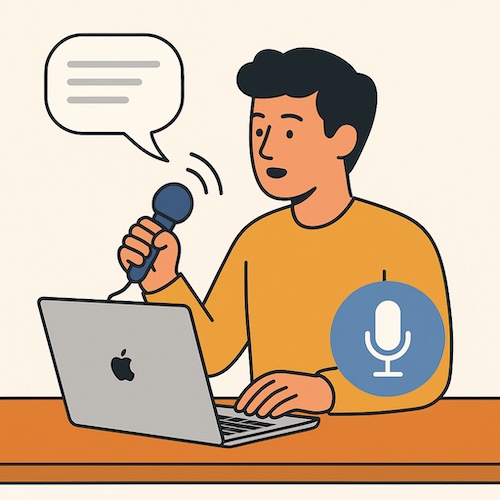
Typing on a keyboard can feel tiring after a while, especially if your hands get stiff or you find yourself hunting for each letter. The good news is your Mac can listen and type for you. This tool is called dictation, and once you try it, you might wonder why you waited so long.
What Dictation on Mac Can Do for You
Dictation lets you speak instead of type. Your words appear on screen in real time, whether you are writing an email, a note, or even a longer document. It is a built-in accessibility feature, which means it was designed to make life easier for people who need a gentler way to interact with their Mac.
Think of it like having a patient assistant at your side, faithfully writing down whatever you say.
How to Turn On Dictation
Setting up dictation is simple:
- Open System Settings from the Apple menu.
- Select Keyboard from the sidebar.
- Find Dictation, and switch it on.
- Choose your shortcut key (for example, pressing the Function key twice).
Once enabled, you can start dictating anywhere you would normally type.
How to Use Dictation Day to Day
- Place your cursor where you want the words to go.
- Press the shortcut key you set earlier.
- Speak clearly at a steady pace.
- Say punctuation out loud, like “comma,” “period,” or “new line.”
- When you are done, press the shortcut again or click “Done.”
It can feel a little unusual at first to say punctuation, but after a few tries, it becomes second nature.
A Real Learner’s Story
Maria, a retired teacher, loved sending long, thoughtful emails to her grandchildren. But arthritis in her hands made typing painful. When she discovered dictation on her Mac, she was amazed at how quickly her words appeared on screen. “I can write without my hands slowing me down,” she said, “and my grandkids get more letters than ever.”
Dictation gave Maria back the joy of writing without the struggle.
Tips for Smoother Dictation
- Speak in full sentences for better accuracy.
- Review your text afterwards to catch small mistakes.
- Use a quiet room, so background noise does not confuse your Mac.
Recap: Why Dictation Helps
- It reduces hand strain by letting you speak instead of type.
- It works across almost any app where you can type.
- It is quick to set up, with just a few steps in System Settings.
Dictation is not only about convenience, it is about accessibility and comfort.
If this guide helped, you will enjoy the step-by-step explanations in Learning Mac for Absolute Beginners – macOS 26 – 2026 edition, which covers accessibility features like dictation along with all the Mac basics in a friendly, easy-to-follow style.