
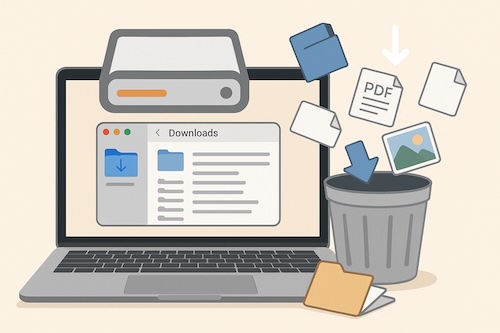
If your Mac is starting to feel sluggish or refusing to save new photos, the culprit might not be a mysterious technical issue. More often than not, it is the humble Downloads folder quietly hoarding gigabytes of forgotten files. Think of it as the “junk drawer” of your computer: convenient, but easy to overfill.
Why Clearing Downloads Matters
Every time you download a PDF from an email, a photo from a message, or a software update, your Mac tucks a copy into the Downloads folder. Over time, these files pile up, eating away at valuable storage space. Unlike your Desktop or Documents folder, Downloads often collects things you do not really need long-term.
Freeing this space is not only about tidiness, it helps your Mac run more smoothly, gives you more room for photos and documents, and reduces the chance of running into those dreaded “Your disk is almost full” messages.
How to Safely Clear Old Downloads on Your Mac
Before deleting, it helps to have a simple plan.
- Open Finder and head to Downloads
Click the Finder icon in your Dock, then choose Downloads from the left-hand sidebar. - Sort by size or date
Click the column headers to sort by Size (to spot the space hogs) or Date Added (to see what is oldest). - Review before deleting
Open any files you are unsure about. If you already have the document saved elsewhere or no longer need it, it is safe to remove. - Move to Trash
Drag unwanted files to the Trash, or select them and press Command + Delete. - Empty the Trash
Until you empty it, the files still take up space. Right-click on the Trash in your Dock and choose Empty Trash.
Tip: If you are nervous about deleting, start small. Remove just a few obvious files (like an installer you already used) and see how it feels.
A Real-Life Story
Margaret, a retired teacher, once emailed me in frustration because her MacBook kept warning her it was “out of space.” She thought she might need a new computer. After a quick check, we found over 12 gigabytes sitting in her Downloads folder, including five copies of the same vacation brochure. Once she cleared them, her Mac felt like new. She was relieved to know nothing important was lost and proud of managing it herself.
Key Takeaways
- Your Downloads folder often hides the largest pile of unnecessary files.
- Sorting by size or date makes cleanup easier and less intimidating.
- Emptying the Trash is the final step to actually free up space.
If you found this guide helpful, you will enjoy the step-by-step lessons in the new Learning Mac for Absolute Beginners – macOS 26 – 2026 edition. It covers everyday skills like organizing files, managing storage, and keeping your Mac running smoothly, all in a friendly and approachable way.