
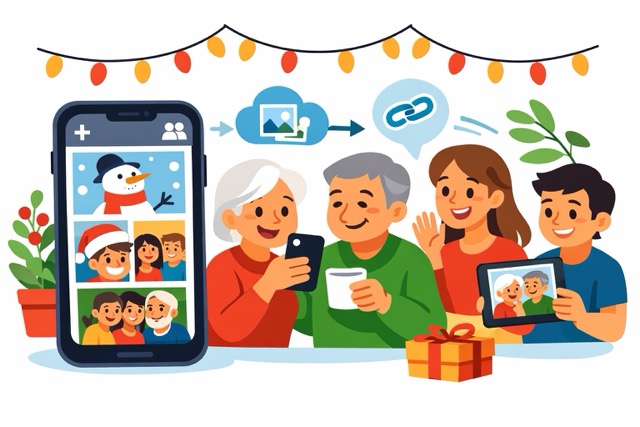
You finally sit down after the holidays, coffee in hand, scrolling through dozens (or hundreds) of photos. Smiles, dinners, decorations, that one blurry shot of the dog. You want to gather the best moments in one place and share them with family—without sending 25 separate messages or feeling overwhelmed.
The good news: your iPhone already has everything you need. Creating a holiday photo album and sharing it takes just a few calm, clear steps.
Let’s do it together.
How to Create a Holiday Photo Album on iPhone
All of this happens inside the Photos app that’s already on your iPhone. No extra apps. No sign-ups.
Step 1: Open Photos and start a new album
- Open Photos
- Tap Collections
- Tap Albums
- Tap the Add button (+)
- Tap New Album
- Name the album, add photos, choose a key photo
- Tap Create
This album is simply a folder. You’re not moving originals—just organizing copies in a new view.
Step 2: Add the photos you love
After naming the album, you’ll see your photo library.
- Tap the photos you want to include
- You can scroll slowly—there’s no rush
- Tap Add in the top-right corner
Tip: Don’t aim for perfection right away. Pick the photos that feel right, not every single one. You can always add or remove photos later by opening the album and tapping Add or Select.
Step 3: Arrange and refine (optional but nice)
Inside your album:
- Tap Select, then drag photos to reorder them
- Put your favorite photo first—it becomes the album cover
- Remove a photo anytime with Select > Delete (this removes it from the album, not from your phone)
Think of it like laying photos on a table and choosing the best order.
How to Share the Album With Family (Two Easy Ways)
Now for the fun part: sharing.
Option 1: Create a Shared Album (best for families)
A Shared Album lets family members view the photos—and even add their own, if you allow it.
- Open the album
- Tap the More (…) button
- Choose Share Album
- Select Shared Album
- Invite people from Contacts
They’ll receive an invitation and can view everything neatly in one place.
This works beautifully for siblings, children, and grandchildren who also use Apple devices.
Option 2: Share a simple link (fast and flexible)
If someone doesn’t use an iPhone, you can still share.
- Open the album
- Tap More (…) > Share Album
- Choose Copy Link
- Send the link by text or email
They can view the photos in a web browser—no Apple account required.
A real learner moment
One reader told me she used to send photos one by one to her sister. Every time. This year, she made her first holiday album, shared one link, and watched the replies roll in: “This is so nice!” and “I didn’t know you could do this!”
The technology didn’t change. Her confidence did.
A few gentle reminders
- You’re not “publishing” photos to the internet
- You stay in control—albums can be deleted anytime
- Sharing is reversible; you can stop sharing with one tap
Nothing here is permanent or risky. It’s like lending someone a photo book and taking it back when you’re done.
Quick recap
- Create a new album in Photos > Albums > +
- Add your favorite holiday pictures
- Share with family using Shared Albums or a simple link
That’s it. Calm, organized, and done in minutes.
Want to feel confident doing this anytime?
If this helped, you’ll love Learning iPhone for Absolute Beginners – iOS 26 (2026 edition) by Simone Andrea Pozzi. It walks you through Photos, sharing, and everyday iPhone tasks with the same calm, step-by-step style—perfect if you want to stop guessing and start enjoying your iPhone.