
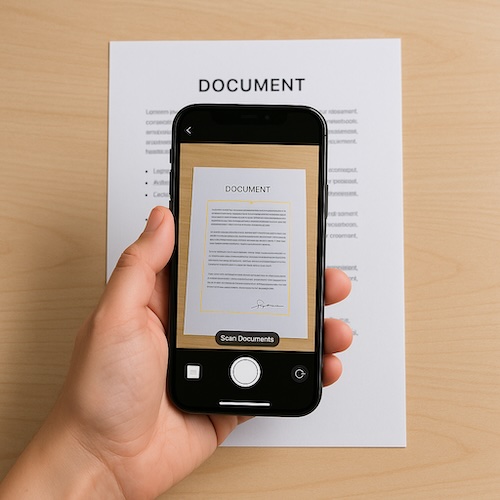
Have you ever needed to send a signed form, a receipt, or a document but realized you don’t own a scanner? For many people, this moment sparks a mild panic. Do you drive to the library, ask a friend, or worse, try taking a crooked photo that looks more like art than paperwork? The good news is, your iPhone already has a scanner built in, and it is easier than you might think.
Why Use Your iPhone as a Scanner?
Think of your iPhone as a pocket-sized assistant. Instead of juggling extra machines, you can scan and send documents directly from the phone in your hand. No ink, no cables, no fuss. The Notes app, which comes pre-installed, does the heavy lifting.
How to Scan a Document on iPhone
Here are the steps to turn paper into a clean digital file:
- Open the Notes app. Tap the yellow Notes icon on your iPhone.
- Create a new note. Tap the square with a pencil in the lower right.
- Tap the camera icon. You’ll see this above the keyboard or at the bottom of the screen.
- Choose “Scan Documents.” Your camera will open, ready to scan.
- Hold your iPhone steady. The app will automatically detect the page edges and snap the scan. You can also press the shutter button if you prefer.
- Adjust if needed. Drag the corners to match the paper edges, then tap “Keep Scan.”
- Save your scan. When finished, tap “Save,” and your scans will be stored neatly in the note.
You can then share the scan by email, text, or even print it later if required.
A Real-Life Example
Janet, a grandmother in her early sixties, recently needed to sign a school form for her grandson. The teacher asked her to send it back by email. At first, Janet worried, since she didn’t own a printer or scanner. Her daughter showed her the Notes app trick, and within minutes Janet had scanned, signed, and sent the form.
Key Takeaways
- Your iPhone can scan documents using the Notes app.
- No extra equipment or printer is needed.
- Scans are clear, straight, and easy to share.
If scanning with your iPhone felt easier than you expected, you’ll love learning other simple tricks that make everyday tasks stress-free. Learning iPhone for Absolute Beginners – iOS 26 – 2026 edition is full of step-by-step guides just like this one, designed for real people who want to feel more confident with their phones.