
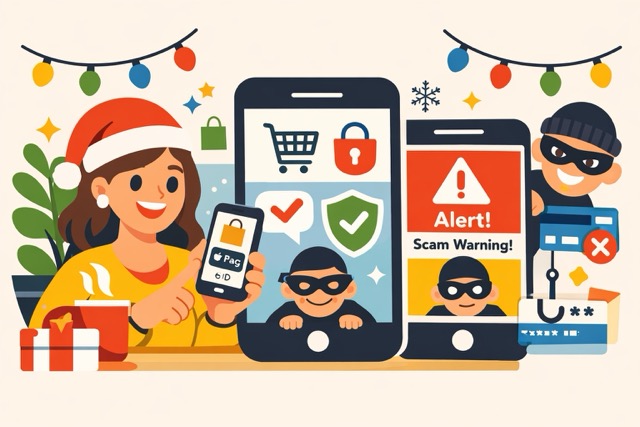
The holiday rush problem (and why scams love it)
It’s December. The kettle is boiling, a delivery deadline is looming, and you’re tapping quickly on your iPhone to grab one last gift. That sense of urgency is exactly what scammers count on. When we rush, we skip small checks, and those small checks are what usually keep us safe.
The good news is this: your iPhone already has strong built-in protections. With a few calm habits, you can shop online safely on iPhone—even when time is tight.
Step 1: Start from a safe place, not a random link
When you’re shopping online safely on iPhone, how you arrive at a store matters.
- Open Safari yourself and type the store’s name, or
- Use a bookmark you already trust
Avoid shopping directly from links in emails, texts, or social media ads, especially holiday “last chance” messages. Scammers copy logos and colors perfectly, but the link underneath often leads somewhere else.
Quick rule: if a message pressures you with “today only” or “account problem,” pause and open the site manually instead.
Step 2: Check the address bar (it takes one second)
Before you add anything to your cart, glance at the top of the screen:
- The address should start with https://
- The store name should be spelled correctly
- No extra words like -verify, -support, or strange endings
This single glance is one of the fastest ways to shop online safely on iPhone, even when you’re multitasking.
Step 3: Use Apple Pay whenever it’s available
At checkout, look for Apple Pay. This is one of the safest ways to pay on an iPhone.
Why it helps:
- Your card number is not shared with the store
- Payment is approved with Face ID or Touch ID
- Even fake sites usually can’t complete Apple Pay properly
If Apple Pay doesn’t appear and the site feels even slightly off, that’s your cue to leave.
Step 4: Let Face ID slow you down (on purpose)
Face ID is more than convenience; it’s a pause button.
When your iPhone asks you to double-click the side button and look at the screen, take that half-second to ask:
- Does this store feel right?
- Is the price believable?
- Did I choose Apple Pay or a saved card, not typing numbers manually?
That tiny moment of awareness prevents many holiday scams.
Step 5: Be cautious with pop-ups and “urgent” warnings
While shopping online safely on iPhone, you may see pop-ups saying:
- “Your iPhone is infected”
- “Payment failed, call now”
- “Confirm your Apple account immediately”
These are never legitimate.
What to do instead:
- Close the tab
- Do not call numbers shown on the screen
- If worried, open Settings or a trusted app yourself and check from there
Your iPhone will not warn you about viruses through a shopping website.
A short real-life story
One reader of mine, Anna, was buying a toy for her grandson late one evening. She tapped a link from a text message offering “free express shipping.” The site looked perfect, but Apple Pay was missing.
She paused, closed the page, opened Safari herself, and searched for the store. The real site appeared, price slightly higher, Apple Pay available. The original link? A scam copy.
That 10-second pause saved her card details and a long phone call with the bank.
Step 6: Stick to saved cards and passwords
If a site asks you to:
- Type your full card number
- Re-enter lots of personal details
- Create an account before checkout
Slow down. Legitimate stores usually allow Apple Pay or saved information through the iPhone’s Passwords system.
Typing less is safer, especially when you’re in a hurry.
Step 7: After checkout, trust your instincts
Once you’re done:
- Look for a normal confirmation screen
- Expect a receipt by email (not instantly demanding action)
- Ignore follow-up messages asking to “re-confirm” payment
If something feels wrong, it probably is. You can always check your purchases later in your payment app or bank app directly.
Key takeaways (keep this mental checklist)
When shopping online safely on iPhone:
- Start from Safari, not messages
- Use Apple Pay whenever possible
- Let Face ID give you a pause
- Close pages that scare or rush you
Confidence comes from calm, not speed.