
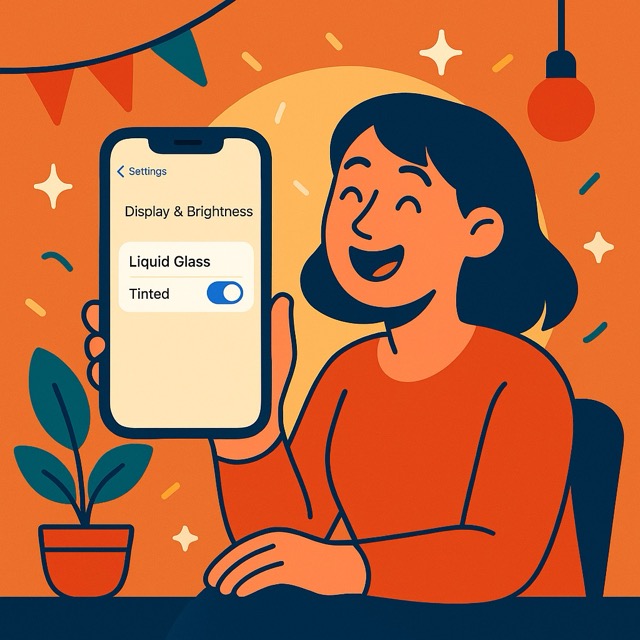
Yesterday Apple released an important update for iPhones. iOS 26.1 focuses on comfort and control: text that’s easier to read, fewer accidental camera launches from the Lock Screen, and helpful tweaks for Music, Fitness, and recordings. Let’s see what’s all about.
How to get the iOS 26.1 update
- Open Settings → General → Software Update.
- Tap Update Now (plug in and use Wi-Fi for a smoother experience).
- Prefer automatic updates? Settings → General → Software Update → Automatic Updates. Turn on Automatically Install so it updates overnight while charging.
- iOS 26.1 is available for iPhone 11 and later, iPhone SE 2 and later, and iPhone Air.
The big one: tune the “Liquid Glass” look
Some people loved the ultra-clear, glassy design in iOS 26. Others found it a bit too transparent. iOS 26.1 adds a simple switch so you can make buttons, tabs, and notifications less see-through.
Try it:
Settings → Display & Brightness → Liquid Glass → Tinted (or Clear to keep the original look).
Tinted adds a bit more opacity, which often improves readability—especially on busy backgrounds. Apple lists this toggle in the 26.1 feature notes.
(If you still want stronger contrast, remember the long-standing tools in Settings → Accessibility like Increase Contrastand Reduce Transparency.)
A small switch with a big sigh of relief: stop accidental camera launches
If your camera keeps opening when the phone is in your pocket or bag, you’ll like this: you can now turn off the Lock Screen “swipe to open Camera” gesture.
Try it:
Settings → Camera → Lock Screen Swipe to Open Camera (toggle off to disable the gesture). This control is new in iOS 26.1 and appears in Apple’s official change list.
You can still open Camera quickly using the Lock Screen Camera button (on compatible models), Control Center, or the Action/Camera Control button—so you keep speed without the accidental swipes.
Quality-of-life tweaks you’ll actually notice
- Music: Swipe in the MiniPlayer to go to the next/previous track. Great for one-handed use.
- Fitness: You can log workouts manually right in the Fitness app—handy if you walked without your Watch.
- Local Capture (recording high-quality audio/video during calls): Choose a save location and get gain controlfor external USB mics. Find it in Settings → General → Local Capture.
- FaceTime: Better audio quality on weak connections.
Language boosts: Live Translation & Apple Intelligence
- AirPods Live Translation now supports Chinese (Simplified and Traditional), Japanese, Korean, and Italian in addition to the earlier set. (Feature requires compatible AirPods and an Apple-Intelligence-enabled iPhone.)
- Apple Intelligence adds more supported languages across features.
Bonus: a small media rebrand you’ll notice on your Home Screen
Apple is renaming Apple TV+ to “Apple TV” with a new icon and “vibrant” identity rolling out alongside iOS 26.1. If your app tile looks different after updating, that’s expected.
Quick start: three helpful switches in two minutes
- Make things easier to read
Settings → Display & Brightness → Liquid Glass → Tinted. - Prevent pocket-camera launches
Settings → Camera → Lock Screen Swipe to Open Camera → Off. - Set updates to install while you sleep
Settings → General → Software Update → Automatic Updates → Automatically Install.
Recap: iOS 26.1 in a nutshell
- The iOS 26.1 update adds a Liquid Glass tint option for better legibility, a toggle to disable Lock Screen camera swipe, and practical tweaks in Music, Fitness, FaceTime, and recording.
- Live Translation with AirPods speaks more languages; Apple Intelligence support expands.
- It’s easy to install: Settings → General → Software Update.
If this guide helped, you’ll love the calm, step-by-step style in Learning iPhone for Absolute Beginners – iOS 26 (2026 edition). It’s written for thoughtful newcomers and patient returners, with friendly checklists and confidence-building tips. Available in eBook and print on Amazon.