
“Wait… there’s another update already?”
That was Alan’s reaction last week. Alan is 63, semi-retired, and just getting comfortable using Messages, Photos, and checking the weather app each morning. He’s not against technology—he just wants it to work without surprises.
And now, just a year after the previous iOS brought some big changes, here comes iOS 26.
If you’ve also wondered “Do I need to care about this?” or “Will everything change again?”, this post is for you.
We’re about a month away from Apple’s next major iPhone update, and I’m here to explain what’s coming, why it matters, and how to get ready without any tech-stress.
What is iOS 26?
Every September, Apple releases a major iPhone update—no new phone required. iOS 26 rolls out in September 2025, bringing a first major redesign since iOS 7 plus smart helper tools that feel more helpful than before.
When Is iOS 26 Coming?
If Apple follows its usual schedule, iOS 26 will likely be released in mid-September, about one month from now.
Right now, it’s in a testing phase called “beta,” meaning tech enthusiasts and developers are trying it early to find bugs and suggest tweaks.
But the public release, the one meant for you, should be smooth, polished, and secure by launch day.
What’s New in iOS 26?
Here are a few changes everyday users may actually notice or benefit from:
1. A Brand-New Look: Liquid Glass Design
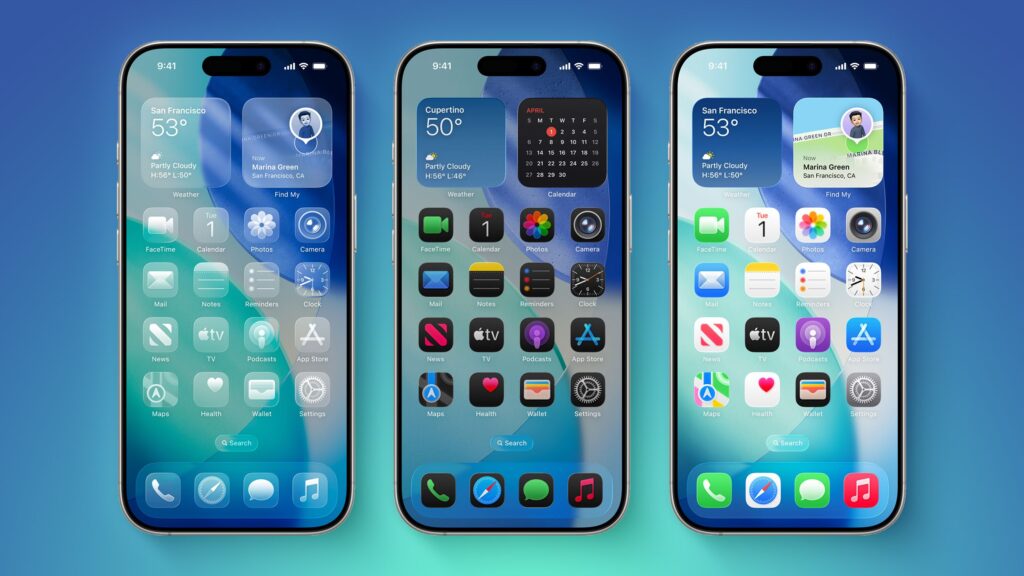
This is the big visual overhaul: the new Liquid Glass design is all about translucent, glass-like interface layers that reflect light and blend with your wallpaper, a more modern, airy look. Menus, widgets, app icons, and buttons all float in semi-transparency with softer, rounder shapes. It’s system‑wide, from iPhones to Macs and even CarPlay.
Menus “pop out” when needed and navigation bars hide when not, so your apps feel cleaner and less cluttered.
Why it matters: Everything looks fresher and feels more intuitive. It’s still iPhone—but with clarity and space that makes tapping easier.
2. Zero-Guess Messaging and Phone Calls
Smart updates to your everyday apps:
- Messages now sorts unknown senders and spam separately, mutes notifications for them, and even shows a badge if something’s there.
- Phone app gets call screening (asks unknown callers their name/reason, transcribes so you decide) and Hold Assist(your phone waits on hold and notifies you when someone answers).
Plus: Live Translation works in Phone, Messages, and FaceTime—on-device, near instant, switching languages as you speak or type.
3. Smarter, On-Device Helpers: Apple Intelligence
A host of AI-powered features, most run on your iPhone, not off in the cloud:
- Visual Intelligence: Take a screenshot and tap “Ask” or “Search” to chat with ChatGPT or Google about anything you see, books, plants, landmarks, even add events or products to your calendar.
- Image Playground + Genmoji: Generate custom images or emojis using styles like watercolor or anime,or free-form prompts. You can even blend faces or moods for fun, shareable results.
- Shortcuts & Reminders upgrades: Shorts now can auto‑summarize, produce images, or interact with text using Apple Intelligence or ChatGPT. Reminders will notice tasks in emails or app notes and suggest adding them.
- Wallet Order Tracking: Wallet can now scan your email to list your recent shipments and orders, automatically.
Note: Many of these features work best, or only, on iPhone 15 Pro, Pro Max, or newer.
4. 🚗 Updates Across CarPlay, Music, Maps, and Apple Games
- CarPlay gets the Liquid Glass look, pinned Messages, Tapbacks (emoji reactions), compact call alerts, interactive widgets, plus Smart Display Zoom to fit your dashboard.
- In Apple Music, expect AutoMix, lyric translation, and simplified playback controls.
- Maps adds a visited places log, smarter route suggestions, and offline fog or delay alerts. Privacy is maintained through encryption.
- A new Games app becomes the home for all your games on iPhone, updates, social, launching, all in one place.
5. 🎧 Other Handy Features
Accessibility & Family updates: Braille improvements, motion sickness cues, easier parental controls, and better child safety features.
AirPods functionality (with Pro 2 or AirPods 4): studio-quality recording for calls and the camera, remote controls with the stem button, and automatic audio pause when you fall asleep.
Battery settings are smarter: see charging time estimation, low-battery Dynamic Island notification, weekly battery use graphs, and a new Adaptive Power mode to extend battery by adjusting brightness and tasks.
Will My iPhone Support iOS 26?
Most iPhones from the iPhone 11 and newer will be eligible for iOS 26. While these iPhones will support iOS 26, advanced features may be limited to newer iPhones with faster processors. Apple Intelligence in iOS 18, for example, only runs on the iPhone 15 Pro and the iPhone 16 models.
Should I Be Worried About the New Interface?
Not at all. If anything, this is Apple’s way of making the iPhone friendlier, not more complicated.
But it’s totally normal to feel hesitant the first time your icons shift or your screen looks different.
You might say, “Wait, where did that go?” But within a day or two, most people find it easier to use than before.
And just like every year, you can always ask someone you trust, look up a quick guide (like this one), or take it one tap at a time.
Should I Update Right Away?
It’s totally okay to wait a few days or weeks after release.
Apple usually fixes any last-minute bugs quickly. If you’re someone who doesn’t love change, wait until you hear good things from friends or tech reviewers before installing.
But don’t ignore the update completely, many of the best benefits (like better security and bug fixes) are in the background.
What About Apps? Will Anything Break?
Most apps you use regularly, like WhatsApp, Facebook, Safari, or Maps, will work fine from day one. App developers get early access to iOS 26 so they can prepare.
In rare cases, an old or niche app might act strange for a few days. But for everyday users, you likely won’t notice a thing.
Alan’s Approach
Back to Alan, he was nervous about updates because once, a setting moved, and he couldn’t figure out how to change his ringtone.
But now? He waits a month or two, asks his daughter if the update “broke anything,” then updates on a quiet Saturday morning, with coffee nearby.
It’s become a yearly tradition, and it works for him.
You can do the same, or you can wait a little more if you feel like.
A Few Steps to Get Ready
- Back Up Your iPhone
- Go to Settings > [your name] > iCloud > iCloud Backup, and tap Back Up Now
- Check Storage
- You may need 5–6 GB free for the update
- Go to Settings > General > iPhone Storage to check
- Write Down Key Passwords
- Just in case something logs you out!
You’re in Control
iOS 26 brings plenty of improvements, but nothing earth-shattering. It’s about refining, not reinventing. You won’t wake up one morning and feel like you’re using a stranger’s phone.
And if you ever feel unsure? Just remember, you can always learn one feature at a time. That’s the only pace that matters.
Want a Friendlier Guide to iPhone Updates?
If this helped you feel more prepared, you’ll find even more clear, reassuring support in my book:
“Learning iPhone for Absolute Beginners – iOS18 – 2025 edition”
It covers iOS updates, essential apps, privacy tips, and real-world examples from people just like you. No tech talk. Just real help.
Let iOS 26 come to you—when you’re ready.