
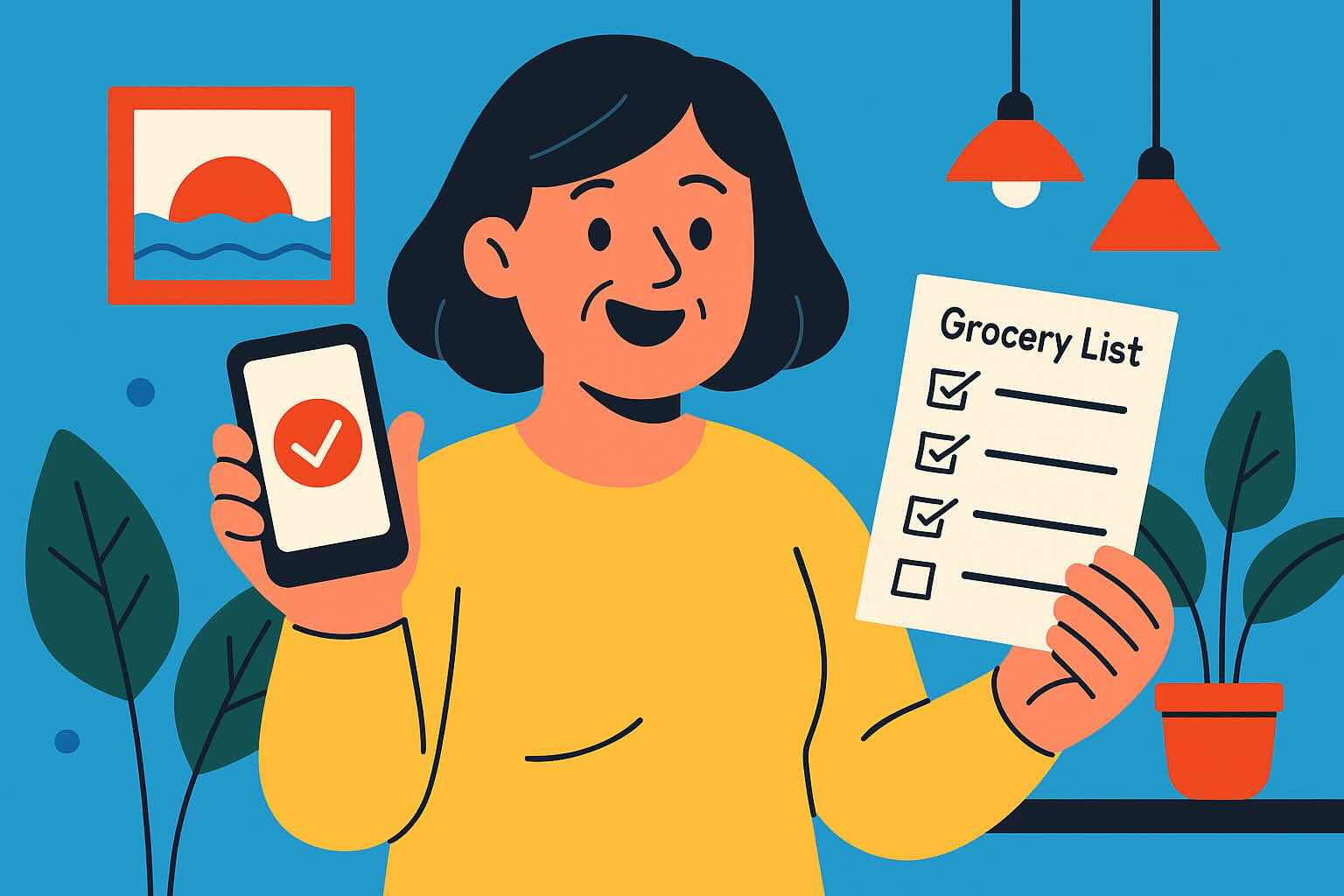
“Wait… Did I Forget the Milk Again?”
Janet, 52, told me she didn’t buy an iPhone to feel like she needed a PhD.
She bought it to make her life easier.
But there she was in the frozen foods aisle—staring at her screen, trying to open an app she downloaded three months ago for groceries but never quite figured out. In the end, she went home without the milk. Again.
If you’ve ever found yourself saying, “I know this thing can help me, I just don’t know how,” you’re in the right place.
This post is your calm, friendly guide to using your iPhone for real-life things like grocery lists, reminders, and even that satisfying feeling of checking things off. No tech jargon. No judgment. Just practical steps.
How Your iPhone Can Help with the “Little Things” That Actually Matter
Let’s focus on three built-in tools that are surprisingly powerful once you know how to use them:
- Notes (for grocery lists and checklists)
- Reminders (for, well, reminding!)
- Calendar (for appointments, errands, and recurring tasks)
You don’t need to download anything extra. These apps are already on your iPhone and are far more useful than they first appear.
1. Make a Simple Grocery List in Notes
The Notes app is often ignored—but it’s gold.
To create a grocery list:
- Open the Notes app.
- Tap the Compose button (a square with a pencil) to start a new note.
- Title it “Grocery List.”
- Tap the checklist icon (a circle with a checkmark) to turn items into checkboxes.
- Type your items:
- Eggs
- Bread
- Milk
- Apples
When you’re at the store, open the note and tap each item as you place it in your cart. The item drops to the bottom, neatly checked off. Satisfying, isn’t it?
💡 Tip: You can share this list with someone else too—like your spouse or grown kids. Tap the share icon and choose how you want to send it.
2. Use Reminders So You Never Forget the Trash Day Again
The Reminders app is like a polite assistant that never forgets what you asked.
To create a basic reminder:
- Open the Reminders app.
- Tap New Reminder.
- Type something like “Take out trash.”
- Tap the info icon (an “i” in a circle).
- Set a day and time, like Tuesday at 7pm.
- Tap Add.
Done. On Tuesday, your phone will nudge you gently: “Take out trash.”
💡 Pro tip: Tap Repeat if it’s something weekly—like watering plants or medication.
3. Use Calendar for Appointments or Events
Many new users get overwhelmed by the Calendar. But all you need is this:
To add a doctor’s appointment:
- Open Calendar.
- Tap the + in the top-right corner.
- Add a title: “Dr. Russo – Checkup.”
- Choose the date and time.
- Tap Alert to be reminded ahead of time.
You can even make events repeat (like haircuts every 6 weeks) or include notes like “bring insurance card.”
Janet’s Story: “It’s Like I Finally Hired an Assistant”
Let’s go back to Janet—the woman who kept forgetting milk.
After a short Zoom call with me (and a few chuckles at how not intuitive some things felt), we set up her Notes app with three permanent lists:
- Groceries
- Things to Buy
- Packing List (Weekend at Sue’s)
She also created a Reminder for her trash day and her dog’s flea treatment—recurring monthly.
Janet later emailed me, saying:
“Simone, I feel like I finally hired a personal assistant. And he doesn’t complain or sigh when I forget how to do something!”
That’s the power of learning just a bit more than you knew yesterday.
Quick Recap: Three Simple iPhone Tools to Try Today
Here’s what we’ve covered:
- Notes: Make and check off grocery or to-do lists with ease.
- Reminders: Set alerts for tasks so nothing slips your mind again.
- Calendar: Schedule appointments or recurring events in a snap.
Each one can save you time, reduce mental clutter, and help you feel more in control of daily life—without needing to “master” technology.
Want More Gentle, Step-by-Step Help?
If this post helped you take even one small step forward, you’ll find a lot more support and encouragement in my book:
Learning iPhone for Absolute Beginners – 2025 Edition
It’s written for thoughtful beginners, just like you—no tech-speak, just real guidance.
You can find it on Amazon in print or eBook format.
Until then, try creating your first reminder today. Start small. You’ve got this.