
Staying on top of appointments, birthdays, and reminders can feel like juggling too many balls at once. Many people still keep paper calendars or try to “just remember” everything, only to end up missing something important. If you use a Mac, the built-in Calendar app can be your quiet helper, keeping you on track without adding stress.
Opening and Navigating the Calendar App
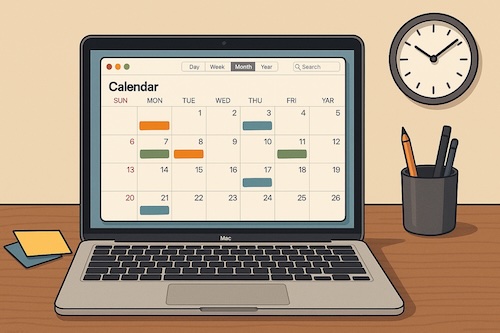
You’ll find the Calendar app in your Dock or in Launchpad (the grid of icons that looks like an iPad screen). Once it opens, you’ll see a clean layout with days, weeks, or months at a glance. Think of it as a digital version of a wall calendar, but with more flexibility.
- Switch views by clicking Day, Week, Month, or Year at the top
- Move through time with the arrows in the upper left
- Today button brings you back if you’ve scrolled too far ahead
Adding and Editing Events
Creating an event is as simple as clicking on the date and typing. A small box appears where you can enter details. For example, you might type “Dentist 10 a.m.”
You can also:
- Set alerts to remind you minutes, hours, or days before
- Add locations so Maps can guide you
- Repeat events for birthdays, weekly classes, or bill reminders
Using Colors to Stay Organized
One of the handiest features is color-coding calendars. You can create separate calendars for family, personal, or volunteer activities, each with its own color. It’s like using different-colored pens in a paper planner, so you can see at a glance what belongs where.
Syncing Across Devices
If you also have an iPhone or iPad, your calendar can stay updated everywhere. As long as your devices are signed in with the same Apple ID and iCloud is turned on, an appointment you enter on your Mac will appear on your phone automatically. No need to type it twice.
A Real Story: From Paper Notes to Peace of Mind
Ellen told me she used to keep appointment cards stuck to her fridge. She worried she’d forget one, especially medical visits. Once she learned how to add events in her Mac’s Calendar app, she not only stopped missing appointments, but also started using alerts to remind her when to leave. “I feel lighter,” she said. “Like my brain isn’t carrying around a to-do list anymore.”
Key Takeaways
- Calendar on your Mac is simple to use and keeps everything in one place
- Adding events, reminders, and colors makes life easier to track
- Syncing with iPhone means you always have your schedule with you
If you’d like more step-by-step guidance for getting comfortable with your Mac, Learning Mac for Absolute Beginners – macOS 26 – 2026 edition is written with the same calm, practical approach. It walks you through everything from organizing files to adjusting settings, so your Mac feels less like a mystery and more like a helpful partner.