
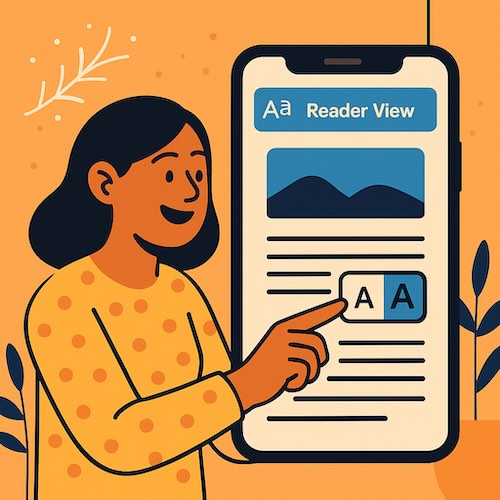
If small web text makes your eyes work too hard, the simplest fix is already on your phone. Reader View on iPhone Safari can tidy a busy page, make the text larger, and keep your place so reading feels calm again. Below you will find short, reliable steps you can follow today, plus a tiny setting that turns this on automatically for your favorite sites.
What Reader View does, in plain language
Reader View removes clutter. Ads, sidebars, and pop-ups fade, and the article’s title, pictures, and text remain. You can also change the type size right on the page with two simple buttons.
How to turn on Reader View on iPhone
- Open Safari and go to a news story or article.
- Tap the Page Menu button to the left of the address field, it might look like two A’s or a rectangle and some lines.
- Tap Show Reader if you see it, the page will switch to a clean reading layout.
- Tap the large A to make the text bigger, or the small A to make it smaller. You can adjust as you read.
Tip: If Show Reader is dimmed, that page does not support Reader View. Try a different article on the same site.
Make Reader happen automatically on favorite sites
If you always want Reader on a site, set it once and relax.
- While you are on that site, tap the Page Menu button, then tap More.
- Scroll and turn on Use Reader Automatically.
- Tap Done. From now on, that site opens in Reader when possible.
Adjust text size without Reader
Some pages will not offer Reader, and that is fine. You can still make text larger:
- Tap the Page Menu button on the left side of the search field.
- Tap the large A to increase the size for that website, Safari remembers your choice per site.
Set bigger text across your iPhone
If you want all apps, including Safari, to use larger text by default, use these settings.
- Go to Settings > Display & Brightness > Text Size, then drag the slider to the right.
- For even larger options, go to Settings > Accessibility > Display & Text Size > Larger Text, then move the slider. You can try Bold Text here too.
A short story from a real learner
Rita, 67, loves local news but hated pinching and zooming. One afternoon we turned on Reader View on iPhone Safari for her two favorite newspapers, then bumped the page text to a comfortable size. Ten minutes later she said, “This feels like my large-print library books.” The next week she told me she was reading more, with less eye strain, and no longer lost her place when an ad popped in. Small change, big relief.
Troubleshooting, if something seems off
- Reader not appearing? Not every page supports it. Try another article, or use the text-size Aa buttons instead.
- Text still too small everywhere? Increase system text in Settings as shown above.
- Looks too big on just one site? Tap the Page Menu button and nudge the text back down with the small A. Safari saves that site’s preference.
Key takeaways
- Reader View clears distractions and lets you resize text right on the page.
- You can enable Reader automatically for specific sites.
- If a page does not support Reader, use the Aa controls or increase system text in Settings for a bigger, calmer reading experience.
If this helped, you will enjoy the step-by-step style in “Learning iPhone for Absolute Beginners, iOS 26, 2026 edition.” It continues with friendly guides for Mail, Messages, Photos, privacy, and many everyday tasks, in the same calm voice. Available as eBook or print on Amazon.