
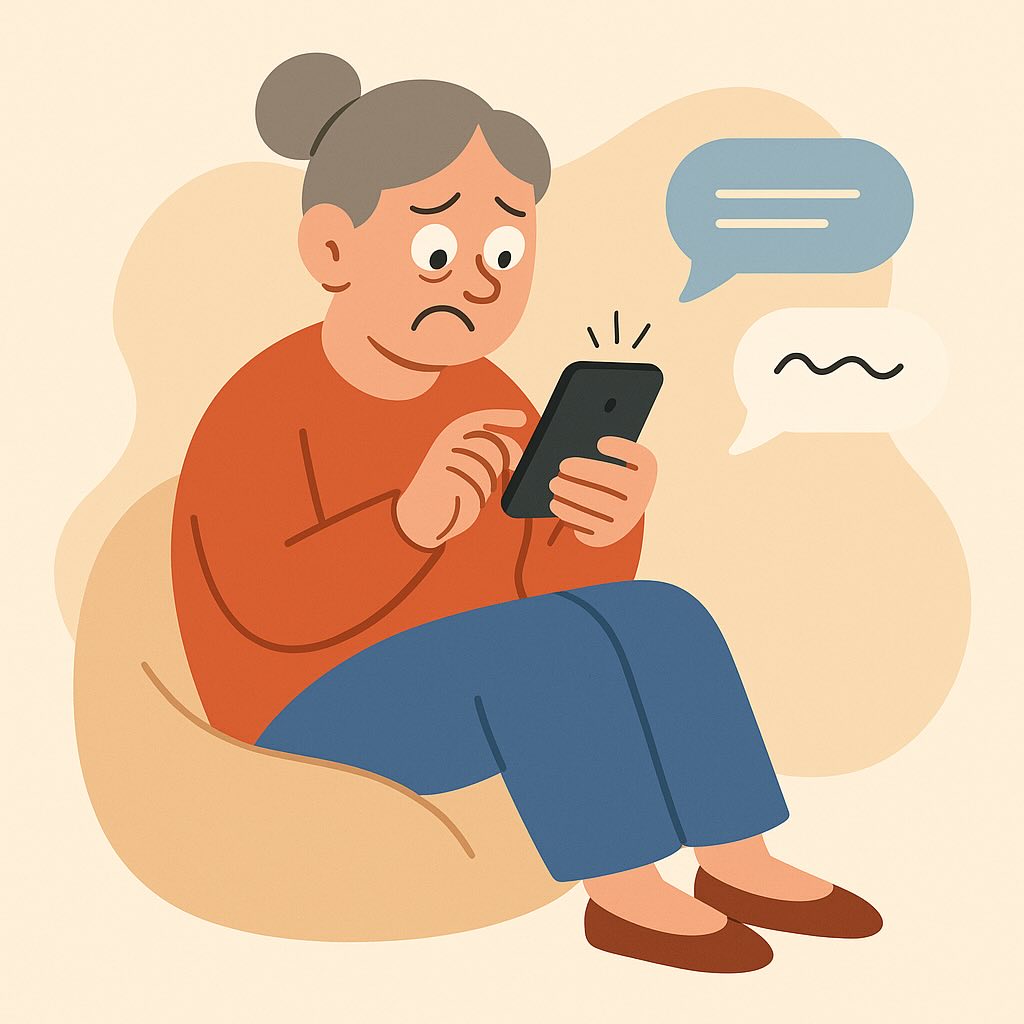
“I’d rather call—I never know if I’m texting the right way.”
That’s what Joan told me during our first iPhone lesson. She’s 52, recently bought her first iPhone, and until a few weeks ago, thought of texting as something best left to “the kids.”
She had a few good reasons:
- She was never sure if her messages were delivered.
- She worried she was being rude if she didn’t reply fast enough.
- The keyboard felt tiny and unforgiving.
- And don’t even get her started on autocorrect.
If any of that sounds familiar, you’re not alone—and you’re not “bad at tech.”
You just haven’t had someone explain it clearly, step-by-step, in a way that makes sense for you. That’s what we’ll do today.
What Is the “Messages” App, Exactly?
Think of the Messages app on your iPhone like a digital version of passing notes—only faster, neater, and nobody can say “I can’t read your handwriting.”
When you send a text message, it travels instantly from your iPhone to the other person’s phone. If they’re also using an iPhone, you’ll be sending what Apple calls an iMessage—which is free, fast, and appears in a blue bubble. If they’re on a different phone (like an Android), it will show up green and may use your phone plan’s text allowance.
The app is built to be simple, once you know where to look.
Step-by-Step: Sending Your First Stress-Free Text
Step 1: Open the Messages App
Tap the green-and-white speech bubble icon on your Home Screen. (It’s usually near the bottom.)
Step 2: Start a New Message
In the top-right corner, tap the small square with a pencil inside. That’s the “compose” button.
Step 3: Choose Who to Text
In the “To:” field, type the name or number of the person you want to text. If they’re already in your contacts, their name will appear—just tap it.
Step 4: Type Your Message
Tap the text box at the bottom (it says “iMessage” or “Text Message”) and start typing. Don’t worry if you make a typo—we’ll talk about fixes next.
Step 5: Send It Off
Once you’re happy with your message, tap the blue arrow on the right to send.
That’s it! You’ve just sent a text.
Fixing Mistakes, Dealing with Autocorrect & Knowing It “Went Through”
Autocorrect Anxiety?
Your iPhone tries to “help” by changing your words—but it doesn’t always get it right. If it changes something and you catch it, tap the little “x” that appears to cancel the suggestion, or simply backspace and retype.
You Sent It—Now What?
Here’s a quick cheat sheet to help you know what happened:
- Blue bubble + “Delivered” below = Success.
- Blue bubble + no note = Still sending.
- Green bubble = Regular SMS (often slower, or uses mobile plan).
- No bubble, no bar = Message not sent (try again later).
You can press and hold any message you’ve sent to see more options: like editing it (if it’s an iMessage), or even unsending it (available for a few minutes after you send, if the other person hasn’t read it yet).
Real-Life Story: Joan’s Texting Breakthrough
After learning the basics, Joan decided to try texting her sister for the first time. She tapped out:
“Hey, I finally learned how to send these. Hope you’re well. Love, Joan :)”
Ten seconds later, her sister replied:
“You’re texting!! I’m so proud of you!! 💕”
That little moment did something big—it turned texting from something stressful into something empowering.
Now, Joan sends photos of her garden, quick “thinking of you” notes to friends, and even reminders to herself through Messages. What once felt like “teenager stuff” is now a tool for staying connected on her terms.
Recap: What to Remember About Texting on iPhone
- Start small. You don’t need to write a novel—just a friendly “Hi” is enough.
- Blue means iMessage, green means SMS. Both are okay.
- Mistakes happen. You can usually fix them—or just send a follow-up. Nobody’s perfect.
- Confidence comes with practice. Each message you send builds a little more of it.
Want More Easy, Friendly iPhone Help?
If this guide made things clearer for you, there’s a whole lot more where that came from. My book, Learning iPhone for Absolute Beginners – 2025 edition, is designed to gently walk you through the iPhone, one small step at a time—with lots of stories, explanations, and illustrations just like this.
Whether you’re brand-new to tech or just want to feel more in control of your iPhone, you’ll find everything you need—without stress, and without judgment.
You’ve got this. And if you ever need a guide, I’m right here.