
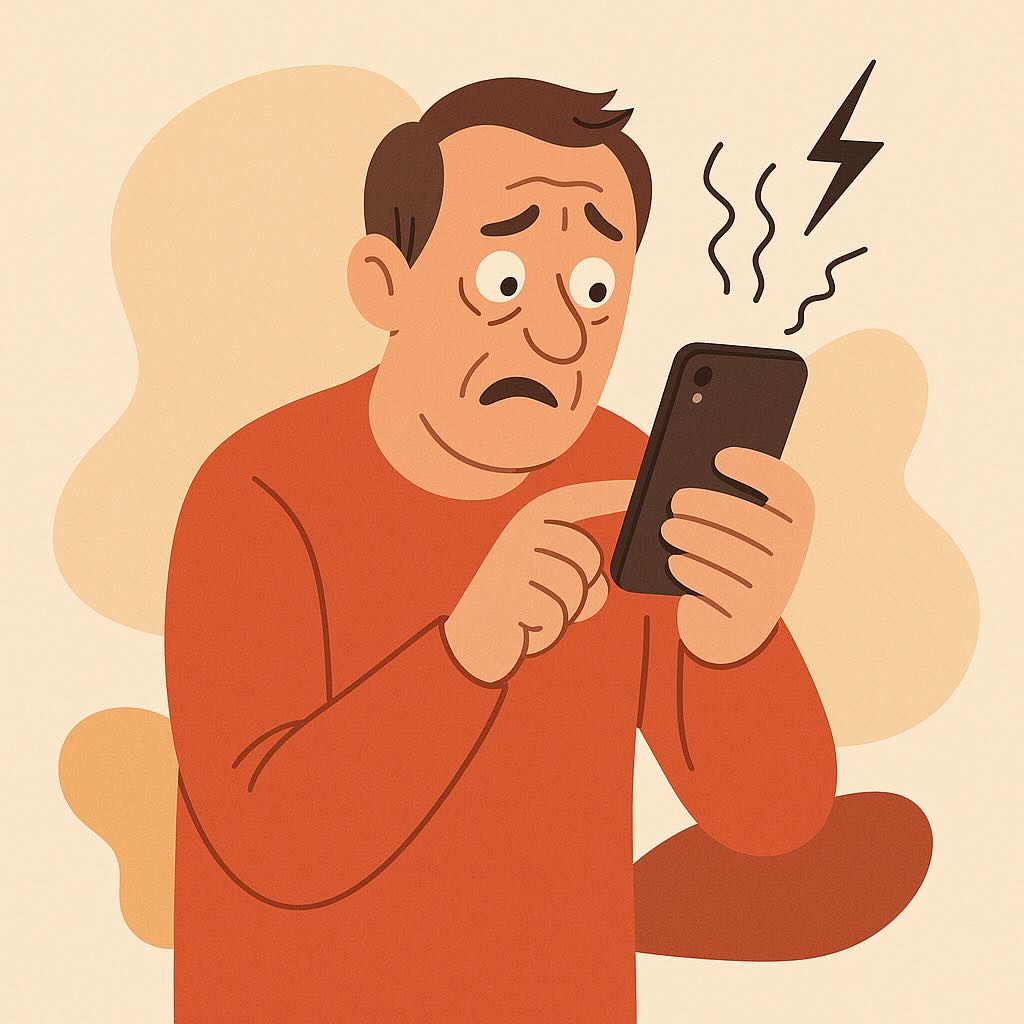
“My iPhone Just Froze… Again!”
When Ellen called me—her voice equal parts confused and apologetic—she opened with a line I’ve heard more times than I can count:
“I don’t know what I did, but now my iPhone won’t do anything!”
Ellen is 52, a warm and witty retired nurse who uses her iPhone daily to check in with family, read recipes, and—her guilty pleasure—play a little solitaire before bed. Like many folks getting more comfortable with technology, she didn’t grow up with smartphones and often worries she’ll “break something” by pressing the wrong button.
If that sounds familiar, you’re not alone.
Most of us hit the occasional bump with our phones—but the good news?
Many iPhone issues are easier to fix than you think.
Today, I’ll walk you through the most common iPhone “mysteries” that trip people up, and the simple, no-stress fixes anyone can try. Whether your screen is frozen, apps aren’t working, or your iPhone seems “possessed,” this guide is here to calm the storm.
1. When Your iPhone Freezes or Stops Responding
The issue: You tap the screen. Nothing happens. You swipe. Nothing. It’s like your iPhone took a coffee break and didn’t tell you.
The fix:
- Try a force restart.
Don’t worry—it won’t erase anything. It’s like giving your phone a gentle nudge to wake up.- Press Volume Up, then quickly Volume Down
- Then press and hold the Side button (on the right) until you see the Apple logo
- Let go when you see the Apple appear
That’s it. You’ve just performed a “force restart,” and it solves 80% of frozen screen problems.
2. When an App Won’t Open or Keeps Crashing
The issue: You try to open an app (say, Weather or Mail), and it closes right away or gives you an error.
The fix:
- Close and reopen the app:
- Swipe up from the bottom of the screen and pause (like halfway up)
- Swipe the misbehaving app up and off the screen
- Open it again from your Home Screen
- Still crashing? Update the app via the App Store
- Open App Store > Tap your profile picture > Scroll down to see available updates
Tap Update next to the app
- Open App Store > Tap your profile picture > Scroll down to see available updates
If that doesn’t work, uninstall and reinstall the app. Your data often stays safe if it’s something like Mail, Facebook, or Notes, but check first if you’re unsure.
3. When You Can’t Hear Calls or Sounds Seem Muffled
The issue: You can’t hear your ringtone, the speaker sounds like it’s underwater, or no sound comes through at all.
The fix:
- Check your mute switch:
That little toggle on the left side of your iPhone? If it’s showing orange, your phone is on silent. Flip it back. - Clean the speaker gently:
Dust and lint love to camp out in the speaker holes. A soft toothbrush or a clean, dry paintbrush can help. - Check sound settings:
Settings > Sounds & Haptics > Drag the volume slider to make sure it’s up
4. When Your iPhone Won’t Charge Properly
The issue: You plug it in, but nothing happens. Or the charging is… slow. Painfully slow.
The fix:
- Inspect the charging port:
Shine a light into the charging port (bottom of the phone). Is there lint or pocket debris? Blow gently or use a soft plastic toothpick. - Try a different cable and charger:
Sometimes the issue isn’t your phone—it’s the $5 cable that’s seen better days.
5. When Your iPhone is “Acting Weird” or Slowing Down
The issue: Apps take forever to open. Battery drains fast. Everything just feels off.
The fix:
- Restart your iPhone: It’s amazing what a fresh start can do.
- Update your iOS software:
Go to Settings > General > Software Update. If an update is available, install it. - Offload unused apps:
Settings > General > iPhone Storage > Tap any unused app > Choose “Offload App”
This keeps the app’s data but frees up storage space.
Real-Life Story: How Ellen Got Her iPhone Mojo Back
Let’s go back to Ellen. After her “frozen phone crisis,” we walked through a few of the steps above. The force restart brought her iPhone back to life. She was thrilled—and relieved it didn’t mean an expensive repair or a trip to the Apple Store.
Later, we tackled her sluggish email app, deleted some very old messages (including one from 2014 titled “Funny Dog Video”), and cleaned out unused apps that were quietly hogging space. By the end of our chat, she was back to checking the weather, FaceTiming her grandkids, and yes—playing solitaire—with confidence.
Key Takeaways:
- Most iPhone problems have simple, safe fixes you can do yourself.
- Restarting your phone is often the first and easiest solution.
- Don’t panic—your phone is more resilient than you think.
Whether it’s a frozen screen or a cranky app, the solution is usually just a few taps away. The more you explore, the more confident you’ll become—and that anxiety will start to fade.
Want More Step-by-Step Help?
If you found this post helpful, you’ll find even more guidance—written in the same clear, friendly tone—in Learning iPhone for Absolute Beginners – 2025 edition.
It’s a gentle, practical guide written for people just like you, with real-world examples and zero tech snobbery.
You can find it on Amazon in both eBook and print formats—ready whenever you are.
Keep going—you’re doing great.