
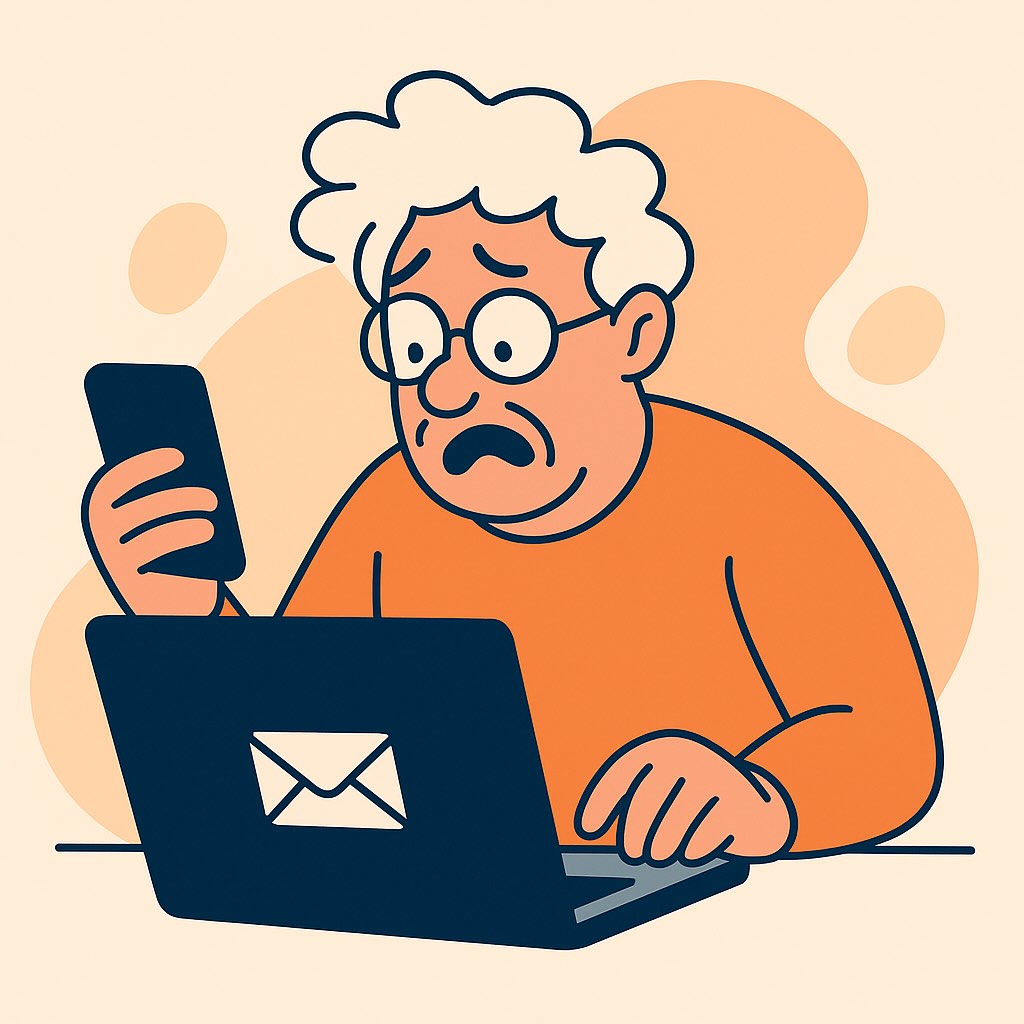
“Am I Sending This to the Right Person?”
The Surprisingly Emotional First Step into Email (and How to Get It Right)
When Linda, a retired school librarian, sat down to send her very first email on her new Mac, she triple-checked everything. Was the name right? The address? What if she hit the wrong button and sent it to everyone in her Contacts list by mistake?
This wasn’t just about technology. For Linda—and for many new users—sending that first email felt like stepping onto a tightrope with no net. But here’s the truth: once you learn the basics (and a few tricks to avoid common mistakes), email becomes one of the easiest and most empowering digital tools in your life.
In this post, we’ll guide you through:
- How to send your first email (on both Mac and iPhone)
- How to read replies
- How to avoid the most common beginner errors (we’ve all been there!)
Step 1: Open Your Email App
On a Mac, you’ll use the built-in Mail app. Just click the little blue-and-white envelope icon on your Dock or in Launchpad.
On an iPhone, tap the Mail app—same icon. It’s usually right on your Home Screen unless moved.
If this is your very first time opening Mail:
- You’ll need to add your email account. Most people use Gmail, iCloud, or Yahoo. The app will walk you through the setup step-by-step—just enter your email address and password, and you’re in.
(Need more help setting up your account? We walk you through that in the book, slowly and clearly.)
Step 2: Write a New Email
Look for the “new message” button:
- On Mac: it’s a square with a pencil in the upper-left corner of the Mail window.
- On iPhone: it’s the same icon, in the lower-right corner.
Now fill in these parts:
- To: Type the person’s email address (like joan.smith@gmail.com). You can also click or tap to select someone from your Contacts list.
- Subject: Think of this like a title or headline. Just a few words (e.g., “Checking in!” or “Birthday plans?”).
- Body: This is where you write your message—just like a letter. It can be long or short.
🟦 Pro Tip: Always double-check the “To” line. One letter off, and you might send your message into the digital void—or worse, to a stranger.
Step 3: Send It!
Once your message looks good:
- On Mac: Click Send (it’s the little paper airplane icon).
- On iPhone: Tap the same icon in the upper-right corner.
That’s it—you’ve just sent your first email!
Step 4: Read Replies (and Keep Track)
New emails will appear in your Inbox, which is usually the first thing you see when you open Mail.
- On Mac: Just click on any message to read it.
- On iPhone: Tap the message to open it.
🟦 Reading Tip: Replies often quote your original message underneath. That’s normal! It helps keep track of the conversation.
🟦 Replying: Look for the Reply arrow—on Mac, it’s at the top of the message; on iPhone, it’s at the bottom. You don’t need to rewrite everything—just type your response and tap Send again.
Real Story: How Roberto Got Over His “Email Stage Fright”
Roberto, a 52-year-old small business owner, once called sending emails “his Everest.” He was confident running his espresso bar but nervous about computers. He needed to email his supplier—just one line about ordering more biodegradable cups. But the fear of doing it wrong stopped him for days.
We sat down with his iPhone, walked through each step (as above), and I reassured him: “You can’t break anything.” When the first email went out and the reply came back two minutes later, his face lit up like he’d just sent a fax to the moon.
Now, he emails invoices, confirms catering orders, and even sends short newsletters to his loyal customers—all from his phone.
Common Beginner Mistakes (and How to Avoid Them)
1. Leaving the Subject Line Blank
Some people skip it, but it’s the first thing the recipient sees. Without a subject, your email might be ignored—or worse, go to Spam.
→ Fix: Just write a short summary like “Lunch this week?” or “Quick question about the invoice.”
2. Hitting “Reply All” Instead of “Reply”
This sends your message to everyone who received the original email. Great for group discussions—terrible if you meant it for one person.
→ Fix: Look for Reply vs. Reply All, and choose carefully.
3. Not Checking for Typos in the Email Address
Emails won’t bounce back if they’re delivered to a real but wrong address.
→ Fix: Always double-check addresses. One letter makes a big difference!
4. Attaching a File, But Not Actually Attaching It
You write, “See attached photo,” but forget to attach it.
→ Fix: Add attachments before you start writing—or give yourself a habit of checking before clicking Send.
Recap & Encouragement
You’ve just learned how to:
- Write and send your first email on both Mac and iPhone
- Read and reply to incoming messages
- Avoid the top mistakes new users make
Remember: You’re not late to the game. You’re just getting started—at your own pace, with the right tools and support. There’s no tech trophy for speed, but there is a big reward in the confidence you gain.
Want More Step-by-Step Help?
If you found this post helpful, you’ll find even more calm, clear guidance in the Learning Mac for Absolute Beginners – 2025 Edition and Learning iPhone for Absolute Beginners – 2025 Edition. These books walk you through every feature, from email to video calls to staying safe online—always in friendly, beginner-friendly language.
You can find them now on Amazon in both eBook and printed formats.
Your first email is just the beginning. You’ve got this.