MAC
MacBook for Seniors: Comfortable Text, Trackpad and Daily Setup
By Simone Andrea Pozzi · Updated
Start with readable text and a trackpad that responds predictably. Adjust one setting, try a familiar task, and keep the change only if it helps. This guide focuses on comfort and control; Mac for Beginners covers opening apps and saving your first file.
Version context: macOS 27, checked 23 October 2026. The Trackpad and Accessibility → Display controls were inspected directly on macOS 27.0.1 without changing their values; the other instructions were checked against Apple documentation. Available controls depend on your Mac and accessories.
1. Make text readable before enlarging everything
- Choose Apple menu → System Settings → Accessibility → Display.
- Open Text size, then move the preferred reading-size slider right.
- Check the listed apps’ choices and click Done. Open a familiar document or message to judge the result.
Result: supported apps and system features use the selected reading size. Undo: return to the slider and restore its previous position. The text-size screenshot in the beginner guide shows the actual dialog.
If you need the whole interface larger, open System Settings → Displays and select your display. Choose a supported resolution toward Larger Text, if offered. This gives larger onscreen items with less room for windows; options vary by display. To undo, return to its previous or Default resolution.
2. Make the pointer easier to follow
- Return to System Settings → Accessibility → Display.
- Find the Pointer section and increase Pointer size a little.
- Move the pointer across a familiar screen and check whether it is easier to spot.
Result: the pointer is larger. Undo: move the same slider back. Increase Contrast and Reduce Transparency are separate options in this Display panel; try them individually if interface boundaries or backgrounds are difficult to distinguish.
3. Learn the difference between a click and a tap
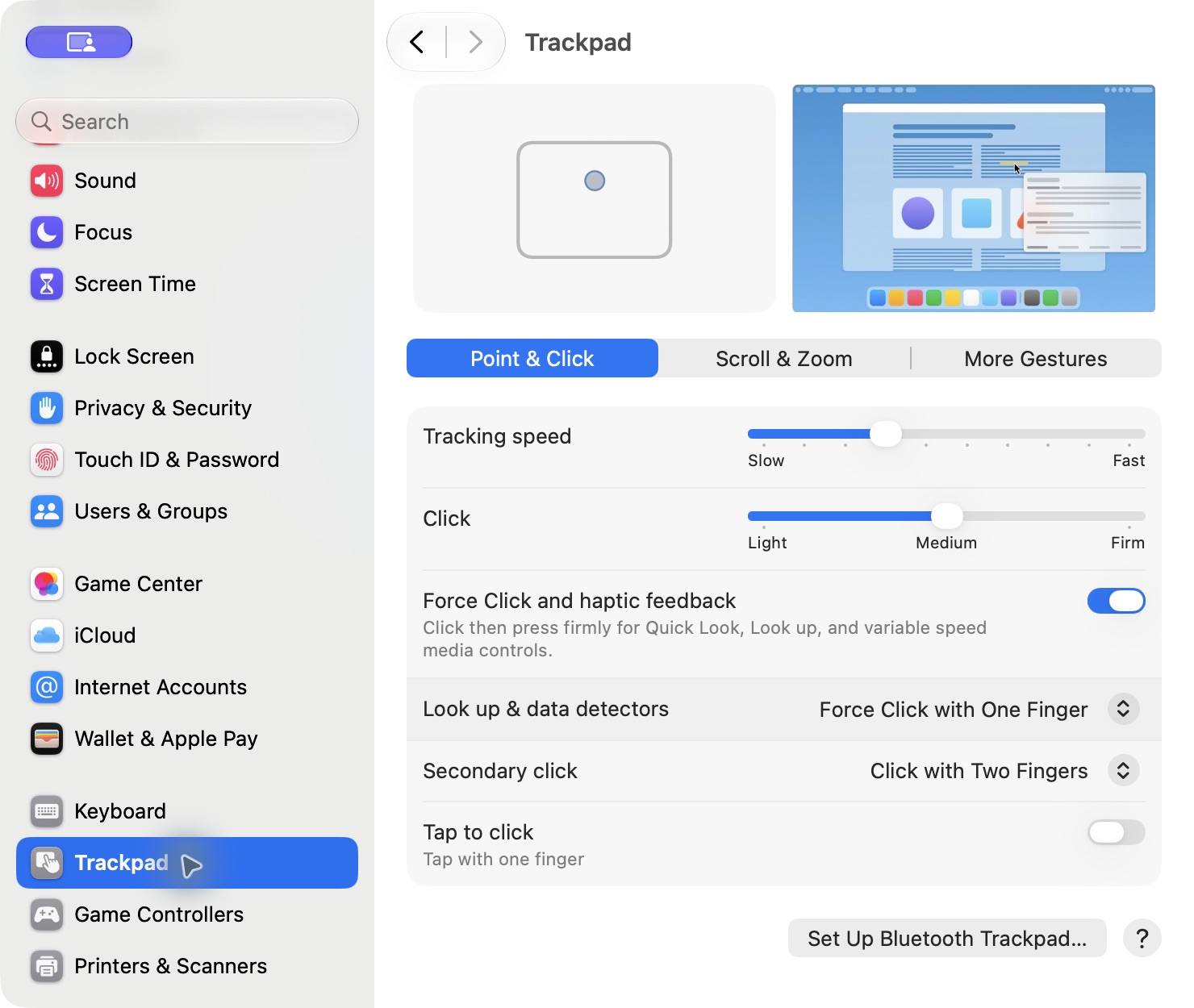
Move one finger to move the pointer. Press the trackpad to click. A light tap works as a click only when Tap to click is enabled. That setting was off on the Mac used for the screenshot; your preference may differ.
- Open Apple menu → System Settings → Trackpad → Point & Click.
- Try moving the pointer. If it moves too far, reduce Tracking speed a little and try again.
- Review Secondary click. Choose the two-finger click option if that is comfortable, then practice it on a file. Holding Control while clicking is another way to open the shortcut menu.
- If you prefer light taps, enable Tap to click. If unintended taps cause clicks, leave it off and use a deliberate press.
Result: movement and clicks match your chosen controls. Undo: return to Point & Click and restore the previous speed or click option. Record the starting position before changing a slider.
4. Make scrolling predictable
Slide two fingers on the trackpad to scroll. In System Settings → Trackpad → Scroll & Zoom, Natural scrolling chooses the direction the page moves. Try it on a long page, then switch it back if you preferred the original direction.
You do not need to learn every gesture at once. Start with pointer movement, a deliberate click, two-finger scrolling and a shortcut menu. If a mouse feels more comfortable, that is a reasonable alternative.
5. Practice the tasks you actually need
Open an app by pressing Command + Space, typing its name and selecting it. For files, practice saving and finding a short document. For more search help, use the Finder walkthrough.
For a family video call, use the service your family already uses and follow its current setup instructions. A built-in camera and microphone are useful, but you still need the app’s account/connection requirements and any camera or microphone permissions. Review the FaceTime user guide if you choose FaceTime.
If you have yet to buy a laptop, compare the 13-inch and 15-inch MacBook Air before choosing a screen size.
6. Make a backup plan and know the recovery route
Time Machine can back up your Mac to a suitable external storage device. Follow Apple’s Time Machine setup instructions and check that a backup completes. Read any erase or formatting prompt carefully before proceeding. Synchronizing files with iCloud is different from keeping a separate backup.
If one app freezes, try its normal Quit command first. When it cannot respond, Apple menu → Force Quit lets you select that app; unsaved work may be lost. The beginner recovery section explains the options. For an unwanted setting, return to the same control and undo that one change.
Choose a companion book for your macOS version
The MacBook for Seniors book below is written for macOS 26. Its free sample lets you judge the style. For the current macOS 27 general beginner book, view Learning Mac for Beginners and Everyday Users or read its free sample. The editions have different software coverage; this article’s checks use macOS 27.0.1.
Sources and checks
- Apple: text size and display accessibility controls
- Apple: display resolution
- Apple: Trackpad settings
- Apple: Force Quit
No system settings, accounts, backup disks or app permissions were changed for these screenshots and control checks.

Want the full guide?
MacBook for Seniors — macOS 26
Confidently use a MacBook for everyday tasks — email, browsing, files, and communication — without ever feeling overwhelmed.
Available on Amazon Kindle
Related reading