MAC
Mac for Beginners: Open Apps, Save Files and Find Them Again
By Simone Andrea Pozzi · Updated
Start by opening Finder, then practice opening an app and finding a saved file. Those three tasks give you a useful route through the Mac. If the computer is still showing its first-run setup, follow How to Set Up a Mac first.
Version context: Apple’s macOS 27 documentation, checked 23 October 2026. Finder Quick Look and the Accessibility → Display → Text size path were also checked directly on macOS 27.0.1. The other steps are documentation-checked. Older macOS versions can use different labels.
1. Recognize the desktop, Dock and menu bar
The desktop is the background behind your windows. The Dock is a row of app shortcuts, usually at the bottom; it can also be placed at either side or hidden until you move the pointer to its edge. Click the blue smiling-face Finder icon to open a window for your files.
The menu bar is at the top of the screen. Click inside an app to make its menus active. The Apple menu at the left gives you System Settings, Sleep and other computer-wide controls.
Try it: click Finder, then look at the app name beside the Apple menu. Result: Finder is active and its menus appear. If the Dock is hidden, move the pointer to the edge where it is positioned.
2. Open an app with Spotlight
- Press Command (⌘) + Space together.
- Type TextEdit, the Mac’s simple document app.
- Select the TextEdit app result, then press Return.
Result: TextEdit opens, or comes to the front if already open. If Spotlight shows a different result first, select the app by name before pressing Return. Press Escape to dismiss the search and start again.
To switch between open apps, hold Command and tap Tab. To quit the active app, use Command + Q after saving your work. Closing a window with its red button does not always quit the app.
3. Save a small practice document
- In TextEdit, choose File → New. If its opening dialog is showing, choose New Document.
- Type a short sentence, such as “Today I practiced finding my files.”
- Choose File → Save, give it a recognizable name such as My first Mac note, and choose Documents as the location. Expand the dialog if you need to see more locations.
- Click Save. Keep the file type TextEdit suggests for this exercise.
Result: the document has a name and a saved location. TextEdit may use a format such as .rtf; you do not need to rename the extension. Chose the wrong folder? Find the document first using the steps below; avoid making several copies while trying to locate the original.
4. Find and preview the saved file
- Click Finder in the Dock.
- Choose Go → Documents from the top menu. This works even if Documents is absent from the sidebar.
- Click your practice file once, then press Space to preview it with Quick Look.
- Press Escape to close the preview. Double-click the file when you want to open it for editing.
Result: you can recognize the document without opening its editor. Quick Look was checked with a demonstration text file on macOS 27.0.1.
Cannot find it? Open Spotlight with Command + Space and type the name you saved. Check the result’s name and location before opening it. For more ways to search, read How to Find Files on a Mac. Downloads is a separate folder: choose Go → Downloads for files received from a browser.
5. Make supported text easier to read
Open Apple menu → System Settings → Accessibility → Display → Text size. The dialog lets you choose a preferred reading size for the listed apps and system features. Move its slider right if you want larger text, then click Done. To undo, return to the same slider and choose its previous position; Default is marked.
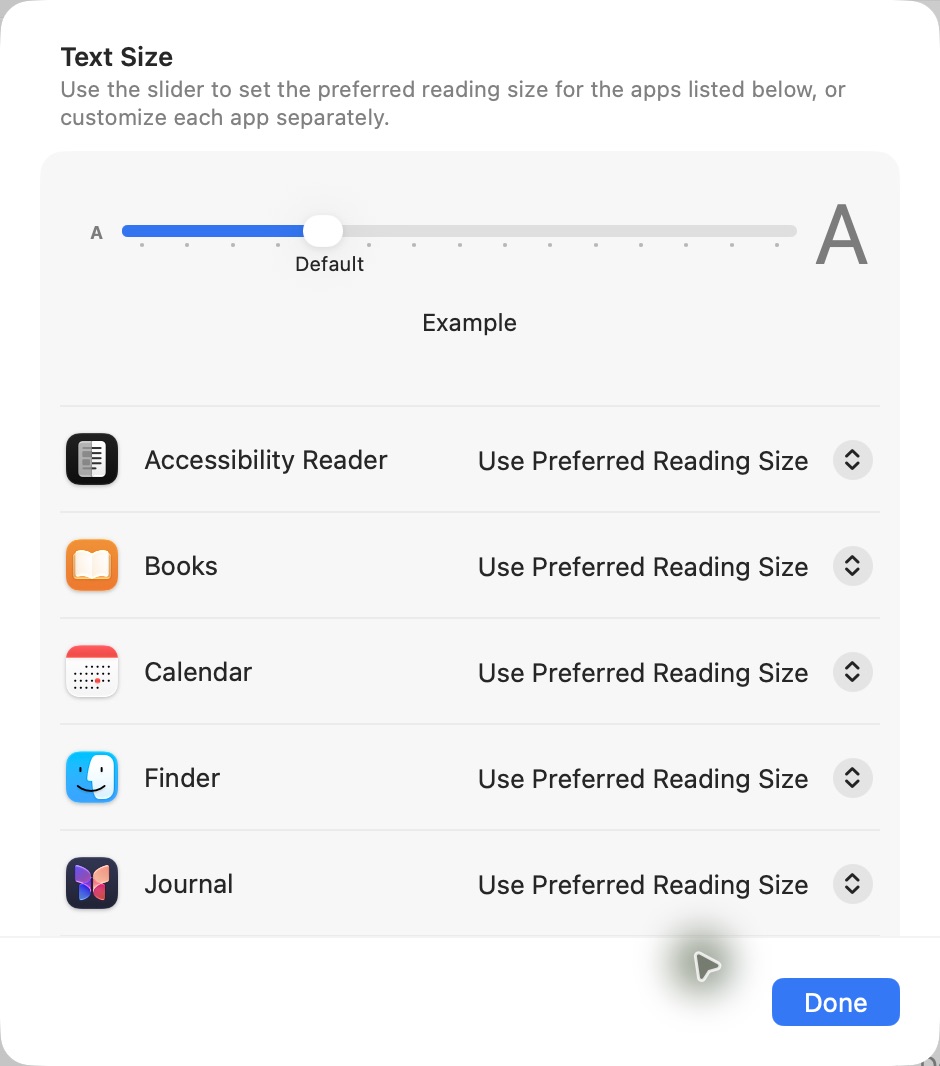
This does not enlarge every webpage or every app. For display scaling, pointer size and trackpad adjustments, follow the MacBook comfort walkthrough. The display settings also apply to other supported Macs.
When you take a wrong turn
Wrong text edit: try Edit → Undo, or Command + Z. Undo depends on the app and action; it cannot reverse every payment, deletion or settings change.
One app stops responding: try its normal Quit command first. If it cannot respond, choose Apple menu → Force Quit, select that app and choose Force Quit. Unsaved work in it may be lost. If Finder itself is the unresponsive app, its option is Relaunch.
A window fills the screen: move the pointer to the top to reveal its controls. The green window control offers full-screen/window options; it is different from merely making text bigger.
Repeat one useful task
Reopen your practice document, add a sentence, save it and find it again. Then use the same pattern for something you want to write. If you are choosing a laptop, read the MacBook Air size comparison. If you are switching from a PC, Mac vs Windows explains the familiar concepts and differences.
Sources and checks
- Apple: Finder and the Dock
- Apple: Spotlight shortcuts
- Apple: creating and saving documents
- Apple: text size
- Apple: Force Quit
The screenshot and direct checks cover only the controls and Finder behavior named above. No account setup, deletion, force-quitting or system preference changes were performed for this article.

Want the full guide?
Learning Mac for Beginners and Everyday Users — macOS 27
Follow numbered steps, in plain English, to use a Mac running macOS 27 — whether you just unboxed it or updated — files, photos, apps, settings, and the privacy controls that matter day to day.
Available on Amazon Kindle
Related reading