Security
What is a passkey?
(And why it replaces your password)
You've probably been asked to "create a passkey" when logging into a website or app recently. If you weren't sure what that meant — or whether you should say yes — you're not alone. Passkeys are new, and most explanations assume you already understand the technology behind them.
Here's the short version: a passkey lets you log in with your face, fingerprint, or screen lock instead of typing a password. That's it. No password to remember, no password to steal.
How passwords work (and why they're a problem)
When you create an account on a website, you choose a password. That password is stored on the website's servers. Every time you log in, you type it again, and the website checks whether it matches.
The problem is that passwords can be stolen. If a website gets hacked, your password might end up in the hands of someone you've never met. And if you used the same password on other sites — which most people do — those accounts are now vulnerable too.
Passwords can also be guessed, intercepted, or tricked out of you through fake emails and phone calls. They're a system designed in the 1960s, and they've been causing problems ever since.
How a passkey works instead
A passkey works differently. When you create one, your device generates two digital keys that are mathematically linked:
- A private key stays on your device. It never leaves. Nobody can see it — not even you.
- A public key goes to the website. It's useless on its own.
When you log in, the website sends your device a challenge. Your device uses the private key to answer it. If the answer checks out, you're in. The whole process takes about a second, and you confirm it the same way you unlock your phone — with your face, fingerprint, or PIN.
There's nothing to type, nothing to remember, and nothing that can be stolen from a hacked website. The public key on the server is meaningless without the private key on your device.
What happens if you lose your phone?
This is the question most people ask first, and it's a good one. The answer depends on your setup:
- Apple devices: passkeys sync through iCloud Keychain. If you lose your iPhone, your passkeys are still on your iPad or Mac — and on any new iPhone you sign into with your Apple Account.
- Android devices: passkeys sync through your Google account, so they follow you to a new phone.
- Windows: passkeys can be stored in Windows Hello or synced through a password manager.
The key point: passkeys are backed up. Losing a device doesn't mean losing access to your accounts.
Should you switch?
Not all websites support passkeys yet, but the list is growing quickly. Google, Apple, Amazon, WhatsApp, PayPal, and many banks already do. When a site offers you the option to create a passkey, it's generally worth saying yes.
You don't have to switch everything at once. Start with one or two important accounts — your email, your bank — and see how it feels. Most people find it faster and simpler than what they were doing before.
Want the full guide?
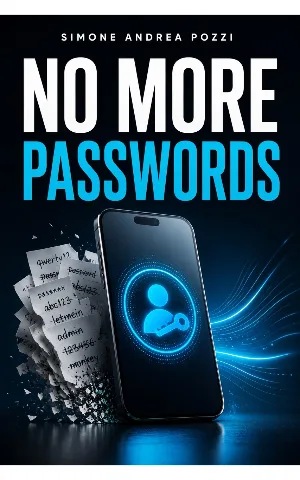
No More Passwords: The Simple Guide to Better Security with Passkeys
Replace passwords with passkeys and build a simple, recoverable system that protects your accounts from hacking and lockouts.
Available on Amazon Kindle
Related reading