IPHONE
How to Make an iPhone Easier to Use: A Senior-Friendly Setup
By Simone Andrea Pozzi · Updated
Keep the apps you use on the first Home Screen, enlarge text, then quiet one unnecessary alert. Work through the changes below with the person who uses the phone. Ask them to repeat a familiar task after each change so the setup remains recognizable.
Version context: checked against Apple’s iOS 27 documentation on 23 October 2026, with earlier-version differences noted. Find your version in Settings → General → About → iOS Version.
1. Remove clutter without deleting apps
Choose the apps you want to keep in easy reach: for example Phone, Messages, Camera, Photos and the person’s usual messaging app. Then remove one unused shortcut:
- Touch and hold that app on the Home Screen.
- Tap Remove App, then Remove from Home Screen. Choose this option rather than Delete App.
- Repeat only for apps you do not need on the Home Screen.
Result: the shortcut disappears, but the app remains in App Library. Removing shortcuts does not make the remaining icons larger by itself.
Need the app back? Swipe left through all Home Screen pages to App Library. Find the app, touch and hold it, then drag it onto the Home Screen. You can also swipe down from the middle of the Home Screen and search for the app by name.
2. Set a comfortable reading size
Open Settings → Accessibility → Display & Text Size → Larger Text. Move the slider right, then open a familiar message to check it. Return to the same slider and move left if the result is too crowded. Bold Text is one level back in Display & Text Size.
To enlarge more of the interface, iOS 27 lists Settings → Appearance → Display Zoom → Larger Text, then Done → Use Zoomed. On iOS 26, start in Display & Brightness instead of Appearance. To undo Display Zoom, return there, choose the default view and confirm.
For contrast, screen magnification and hearing adjustments, follow the accessibility settings walkthrough. It includes the exit gesture for screen Zoom.
3. Quiet one app that interrupts you
- Open Settings → Notifications.
- Choose an app whose alerts you do not need, such as a shopping app.
- Turn off Allow Notifications for that app.
Result: that app stops sending notifications; you can still open it normally. Undo: return to its notification settings and enable Allow Notifications.
Review alerts individually. Keep the calls, messages, calendar reminders and other alerts the person relies on. If you use Focus or Do Not Disturb, review its allowed people and apps separately; it can silence alerts even when an app’s notifications are enabled.
4. Keep important people easy to find
Save the correct phone numbers in Contacts, then use Favorites in Phone for frequent calls. In iOS 26 and later, Phone offers Unified and Classic layouts. Unified shows favorites in Calls; Classic has a separate Favorites tab. The Filter button in Calls or Recents switches between the layouts.
Ask the person to find one familiar contact and make a call. If they need a walkthrough, use the beginner’s calling steps. Keep the layout they recognize.
5. Consider Assistive Access only if it fits
Assistive Access is a more focused iPhone experience designed for people with cognitive disabilities. It changes how supported apps and navigation work. It is an option to discuss with the person using the phone, rather than a default setting for every older adult.
- Start in Settings → Accessibility → Assistive Access → Set Up Assistive Access.
- Follow the setup to choose apps and a layout, confirm the user’s account, and set the separate Assistive Access passcode. Set up the recovery account so you have a way back if the code is forgotten.
- Before starting, practice the exit: triple-click the side button (or Home button), choose Exit Assistive Access, and enter that passcode.
Result: the phone uses the selected focused layout. Return to the usual interface: use that exit sequence. Read Apple’s full setup guide before enabling it, especially the account and recovery steps.
Review the safety basics together
Keep the phone’s passcode and account recovery information accessible to their owner. Review Apple’s Medical ID instructions and the Emergency SOS information in Settings. Choose deliberately what personal information to show when the phone is locked.
Finish with three everyday tasks
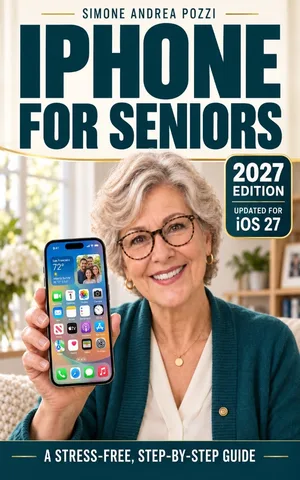
Ask the person to open their usual messaging app, find a family member and take a photo. Keep changes that make those tasks easier. For numbered practice steps, use How to Use an iPhone for Beginners; for the whole learning path, read iPhone for Seniors.
Sources and version notes
Checked against Apple documentation on 23 October 2026. These are documentation-checked instructions, not a hands-on device test. Menu labels can vary with software version and language.
Want the full guide?
iPhone for Seniors — iOS 27
Use an iPhone running iOS 27 for everyday tasks — with simple steps, a slower pace, and clear guidance. Stay in touch, and learn how to spot common scams.
Available on Amazon Kindle
Related reading