IPHONE
iPhone Accessibility Settings for Seniors: Text, Zoom and Audio
By Simone Andrea Pozzi · Updated
Start with Settings → Accessibility → Display & Text Size. Increase the text, check a familiar message, and change one setting at a time. This page covers visual, audio and touch adjustments; for a quieter Home Screen, use the everyday setup checklist.
Version context: Apple’s iOS 27 user guide, checked 23 October 2026. Check your version in Settings → General → About → iOS Version. Earlier releases can use different labels.
Make text larger and easier to read
- Open Settings → Accessibility → Display & Text Size → Larger Text.
- Move the slider right a little. If you need more range, enable Larger Accessibility Sizes.
- Return to Display & Text Size and try Bold Text.
- Open Messages and read an existing conversation. Adjust again if lines feel crowded.
Result: supported apps use your preferred text size. Some apps and webpages have their own controls. Undo: return to the same slider, move it left, or switch Bold Text off.
Make transparent panels and controls clearer
- Return to Settings → Accessibility → Display & Text Size.
- Try Reduce Transparency to make transparent backgrounds solid.
- Try Increase Contrast separately, then compare a familiar screen.
Result: backgrounds and boundaries may be easier to distinguish. Undo: turn off the option you just changed. Keep the combination you prefer; you do not need every option switched on.
Magnify the screen, and know how to get back
Before enabling Zoom, remember the exit gesture: double-tap with three fingers. Zoom magnifies the screen; it is different from changing text size.
- Go to Settings → Accessibility → Zoom and enable Zoom.
- Double-tap with three fingers to switch magnification on or off.
- If using Full Screen Zoom, drag with three fingers to move around the enlarged screen. Window Zoom uses a movable lens instead.
Result: the whole screen or a lens area is enlarged, depending on Zoom Region. Stuck magnified? Double-tap with three fingers, then return to the Zoom settings and switch Zoom off if you no longer want it.
For a label or object in front of you, open the Magnifier app instead: it uses the camera, rather than enlarging the phone’s interface.
Adjust audio without confusing it with ringtone volume
During a call, use the side volume buttons to adjust what you hear. Ringtone volume is a separate control in Settings → Sounds & Haptics. Test each at a comfortable level.
- Open Settings → Accessibility → Audio & Visual.
- If you want both audio channels to carry the same content, try Mono Audio.
- For left/right balance, move the Balance slider slightly, then listen to something familiar.
Result: Mono Audio combines stereo channels; it does not isolate speech from sound effects. Undo: turn Mono Audio off and return Balance to the center.
Supported headphones: Headphone Accommodations is in the same Audio & Visual section and can amplify soft sounds or adjust frequencies. It requires compatible headphones. Turn it off there if you prefer the original sound.
Hearing aids: check the exact model’s Made for iPhone compatibility before pairing. Settings → Accessibility → Hearing Devices is the starting point for compatible devices; use the manufacturer’s pairing directions and Apple’s hearing-accessibility guide. Availability and controls vary by device.
If taps are difficult to control
- Go to Settings → Accessibility → Touch → Touch Accommodations.
- On iOS 27, tap Set Up Touch Accommodations if offered, and follow the setup. Earlier versions may show the individual options directly.
- Try the suggested adjustment before changing more. Hold Duration requires a longer touch; short taps and swipes within that duration are ignored.
Result: touches are interpreted using the selected timing. If taps seem unresponsive, hold for the configured duration to navigate back. Undo: reopen Touch Accommodations; in iOS 27 use Reset Touch Accommodations to return to the original setup, or turn off the adjustment you enabled.
Choose your next task
For fewer icons and interruptions, follow How to Make an iPhone Easier to Use. To practice the basics after adjusting the screen, follow the beginner’s call, message and photo walkthrough. The broader iPhone for Seniors guide connects the learning steps.
Sources and version notes
Checked against Apple documentation on 23 October 2026. These are documentation-checked instructions, not a hands-on device test. Menu labels can vary with software version and language.
Want the full guide?
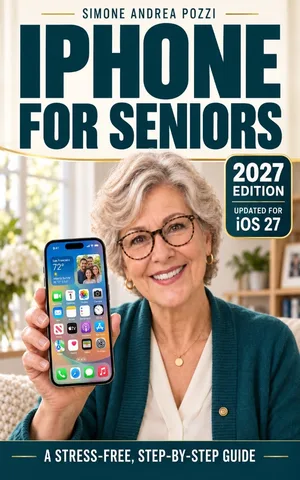
iPhone for Seniors — iOS 27
Use an iPhone running iOS 27 for everyday tasks — with simple steps, a slower pace, and clear guidance. Stay in touch, and learn how to spot common scams.
Available on Amazon Kindle
Related reading