IPHONE
iPhone for Seniors: The Complete Plain-English Guide (2026)
By Simone Andrea Pozzi · Updated
If you've picked up an iPhone — or you're thinking about it — and you're not sure where to begin, you're in the right place. This guide covers the whole picture: which model to choose, how to make it easier on your eyes and ears, and how to learn the everyday basics without feeling rushed. Each section links to a deeper article if you want to go further on any topic.
There's no wrong place to start. Read in order, or jump to whatever feels most useful today.
Which iPhone should you get?
Choosing a model doesn't need to be complicated. For most people over 60, the most important factors are screen size, battery life, and whether the phone is comfortable to hold and read. Most people are happy with a current standard model — it handles calls, messages, photos, and video calls without any compromise. If eyesight is a concern, choosing a model with a larger screen makes text and buttons easier to see without touching any settings. And if budget matters, a recent older model (available refurbished or discounted when new models launch) offers the same everyday experience at a lower price. You don't need the fastest chip or the best camera to stay connected with family.
For a specific recommendation based on your situation, read Which iPhone Is Best for Seniors? or try the free Which iPhone? interactive guide — it asks a few simple questions and gives you a clear, honest recommendation for the current lineup.
Making the iPhone easier to use
Out of the box, an iPhone is set up for everyone — which means its defaults are a compromise. Text is smaller than it needs to be for comfortable reading. Some buttons are closer together than they should be. The font weight is lighter than many people prefer.
The good news: all of this is adjustable. You can make text larger with a single slider, add bold to every letter on screen, increase the spacing between icons, and simplify the Home Screen so you only see the apps you actually use. None of these changes are permanent — if you try something and don't like it, you can switch it back the same way you changed it.
For a practical checklist with a way to undo each change, simplify the Home Screen, reading size and alerts. Check each change with a familiar task before moving to the next one.
Seeing and hearing it clearly
The iPhone has a full set of accessibility features built in — not as an afterthought, but as a core part of how the phone works. These aren't only for people with significant vision or hearing differences. They're for anyone who finds the default settings less comfortable than they could be.
For vision: you can make text significantly larger (beyond the standard slider), turn on bold text, increase the contrast between text and backgrounds, and use a built-in magnifier that works like a handheld magnifying glass. For hearing: you can raise both the ringer and call volume, choose a louder or more distinctive ringtone that's easier to notice, and turn on vibration so you feel the phone ring even when the room is noisy. iPhones also work with many hearing aids directly — a feature worth exploring if you use one.
There's also a Zoom feature that lets you double-tap with three fingers to magnify any part of the screen — useful for reading a website, a photo caption, or a menu that hasn't been designed with larger text in mind.
For a step-by-step guide to the accessibility settings that matter most, read iPhone Accessibility Settings for Seniors.
Learning the everyday basics
Once your iPhone is set up the way you like it, the next step is getting comfortable with the everyday tasks: making and answering calls, sending a text message, taking a photo and finding it afterward, and knowing how to get back to a safe starting point if you end up somewhere unexpected.
If you're not sure where you are, press the Home button on a Home-button model, or swipe up from the bottom edge on a Face ID model, to return Home. Read payment, sharing and deletion prompts before confirming them.
Practice one call, one text and one photo with numbered beginner steps, including what to do if you land on the wrong screen. If the phone still shows its initial setup screens, begin with How to Set Up a New iPhone.
Quick wins to feel confident today
You don't need to read the whole guide before you start. These are things you can do right now — each one takes under two minutes and makes a real difference. For more tips like these, read iPhone Tips for Seniors.
- Make text bigger instantly. Open Settings, search for "Text Size," and drag the slider until the text is large enough to read comfortably. You'll see the difference immediately across the whole phone.
- Find any lost app in five seconds. From the Home Screen, swipe down with one finger. A search bar appears — type the app's name and tap it. You never have to hunt through pages of icons again.
- Add your key people to Favorites. Open the Phone app, tap Favorites, tap the + button, and choose a contact. Your most important people are then one tap away from the Phone app — no need to search for their number every time.
- Use Dictation instead of typing. Tap the microphone button on the keyboard, speak naturally, then tap it again to stop. Works in Messages, Mail, Notes, and most other apps. Useful if typing on a small screen feels slow or frustrating.
- Recover a photo you deleted by mistake. Open Photos, go to Albums, scroll down to Recently Deleted, and you'll find it there. Deleted photos stay available for 30 days before they're gone for good.
- Block one spam caller. Open the Phone app, tap Recents, tap the small "i" next to the number, and tap Block this Caller. The number can still leave a voicemail, but you won't hear it ring.
Want the full guide?
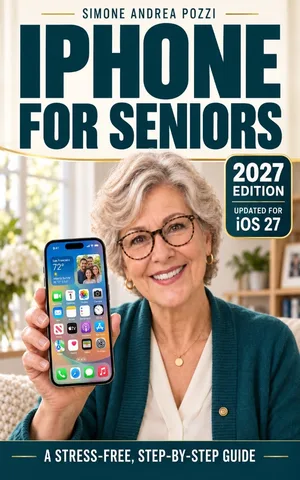
iPhone for Seniors — iOS 27
Use an iPhone running iOS 27 for everyday tasks — with simple steps, a slower pace, and clear guidance. Stay in touch, and learn how to spot common scams.
Available on Amazon Kindle
Related reading